Configuring Pokemon and Friends - Cloud Edition
by Waldo, Silverlink and CodeWithTD
Version: 2.0.2OBS ImportDLLStreamerbot Import
Allow users to catch and collect Pokémon on stream. With an online Pokédex and real catch rates and shinnies, while supporting 8 GENERATIONS. This is the must have for any Pokémon fan's stream!
🛒 View on StreamUP Shop💡General Notice
This guide assumes you have the latest StreamUP DLL installed. All required plugins, including the StreamUP plugin, and Streamer.Bot should be up to date. It also assumes you have already imported any fonts, OBS scenes or Browser Sources and Streamer.Bot import files.
Please make sure you have followed the standard product installation steps for StreamUP products.
If you haven't and where appropriate please follow these specifically:
Some steps are accompanied by images, you can click on these images to make them bigger. Where appropriate they have been tagged with Numbers, you can find the corresponding number in brackets (X)
Getting Setup
This section explains how to set up the Pokemon and Friends game. This will help you get it into a working state.
Before we open the Settings Lets do some Pre-Setup
Triggering A Catch
With the new update you can now choose to trigger by a Command or trigger by a Channel Point. Whichever method you choose will result in a random ball being chosen.
INFO
Be sure to check out the freebies so you can use the Pokemon Game with our Currency System, it will also show how you could use a command (or even a channel point to chose the ball you want)
If you want to use a Channel Reward Redemption
If you want to use a Channel Point reward you can, however you will need to create one.
To do that follow the guide below.
- Go to the “Actions” tab
- Click on “StreamUP - Pokémon and Friends - Perform Catch”
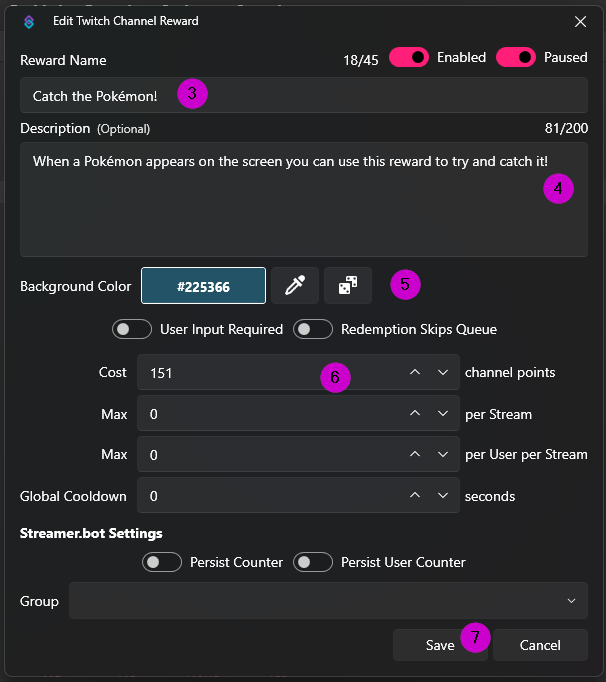
- Open up the Reward Redemption (1)
- In the new window click Create Reward (2)
- Give your reward a Title (the bot will automatically update it to “Catch the ‘Pokémon Name’”) (3)
- Add a description so viewers know what the reward does (4)
- Set a colour if you wish! (5)
- Set a cost that fits your community (6)
- Click Save (7)
- Select the Reward (8)
- Press Ok (9)

INFO
You can customize other reward settings, but these are the minimum required steps.
If you wish to use a Command.
If you wish to use a command you can, all you need to do is enable the Trigger on the Perform Catch Action and then Enable the Command (We show you how to enable commands a bit further down, so you can do it when you get to that bit!)
Opening and configuring PaF settings
INFO
Before you open the settings, make sure your Streamer.bot is connected to OBS.
- Click the “StreamUP - Pokémon and Friends - Settings” action (1)
- Right-click the “StreamUP” trigger (2)
- Click “Test Trigger” (3)
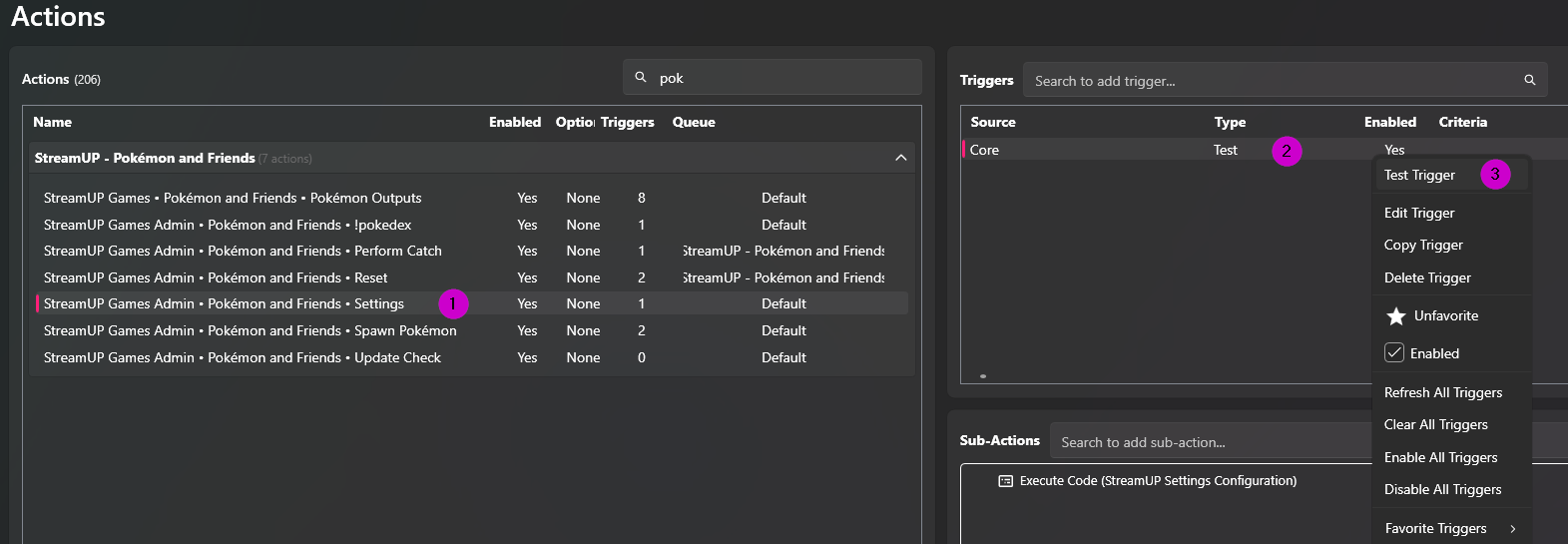
Our Settings Popup will now appear.
Adjust the remaining settings to your preference — read each option's description.
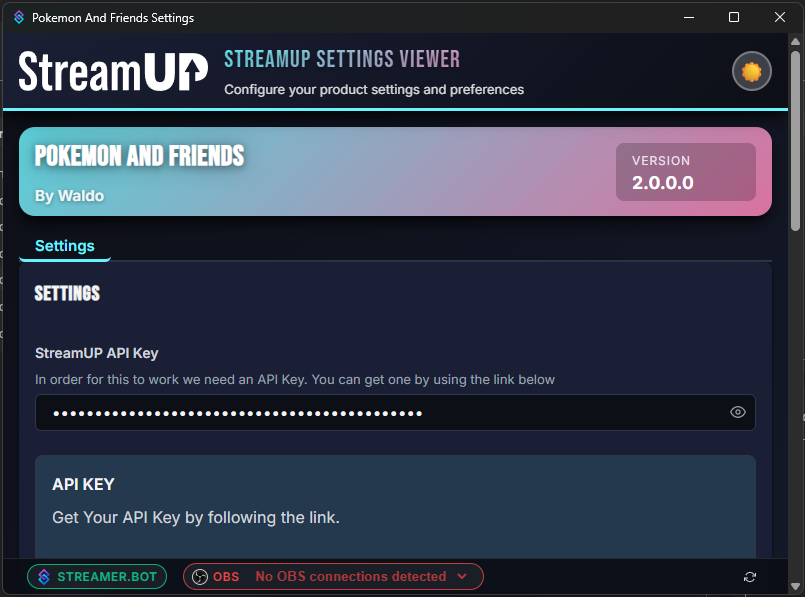
You will need to Enter The API Key
Getting your StreamUP API Key
- Read the very important notice on the website
- Click the “LOGIN WITH TWITCH” button
- On the next page, Twitch will show what permissions are required; click Authorize
- After authorization you should see “Hi, YourUserName” — this means it worked
- Click “Click here to reveal your key.”
- ‼️VERY IMPORTANT DO NOT SHOW THIS CODE TO ANYONE!
Select which is the highest Generation you want to spawn, meaning if you select "3" then Pokemon from Generations 1,2 and 3 will spawn.
Select your language that you want the Pokemon to spawn in, all other text can be managed in Streamer.bot.
Select your sprite type, examples are below.
Adjust the catch rate. (The math of catch rate is explained below)
Adjust the Shiny Spawn rate. (The math of shiny is explained below)
Adjust the Flee Chance (The math of Flee is explained below)
Now select the channel point you just made, if you want to use channel points - you can select
Noneif you wish but if you're not using Channel Points it can be ignored.Adjust the Status Effect Boost (This is part of the catch rate math)
Add the Status Effects (I've posted some examples below)
Adjust the chance for the status to be worn off if the Pokemon escaped.
Then go to the balls tab
Choose which balls you want to be enabled, how often you want them to show, and then how much you want to boost the catch rate with them. (All math is explained below)
When finished, press “Save” at the bottom.
Example Status Effects
- Asleep
- Poisoned
- Confused
- Burnt
- Frozen
- Paralysed
- Cursed
Enabling the Twitch Commands
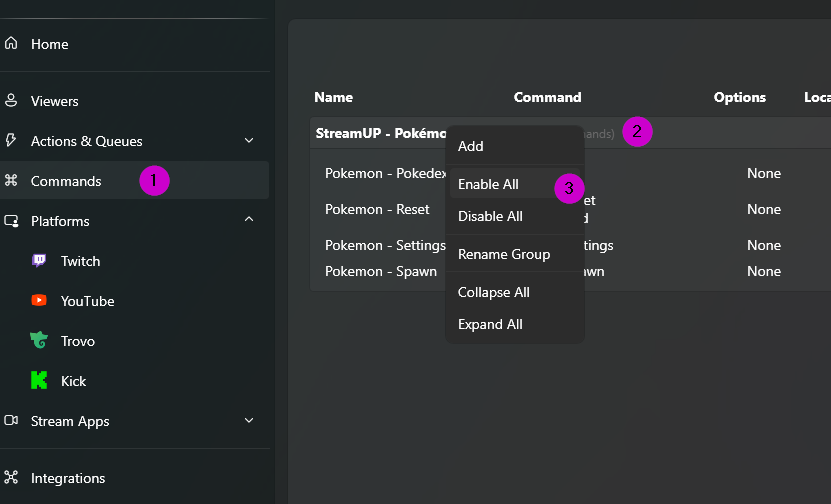
- Go to Commands (1)
- Find the “StreamUP - Pokémon and Friends” category (2)
- Right-click on the category (2)
- Click “Enable All” to enable the commands. (3)
INFO
We have set !poke-reset, !poke-end and !poke-spawn to be available to moderators and higher by default.
WARNING
If you are not using a command to catch you will have to check that one individually!
Customizing Spawn and Flee timers
INFO
By default, Pokémon spawn between 5 and 15 minutes and flee 10 minutes after a spawn. You can change these values in Streamer.Bot.
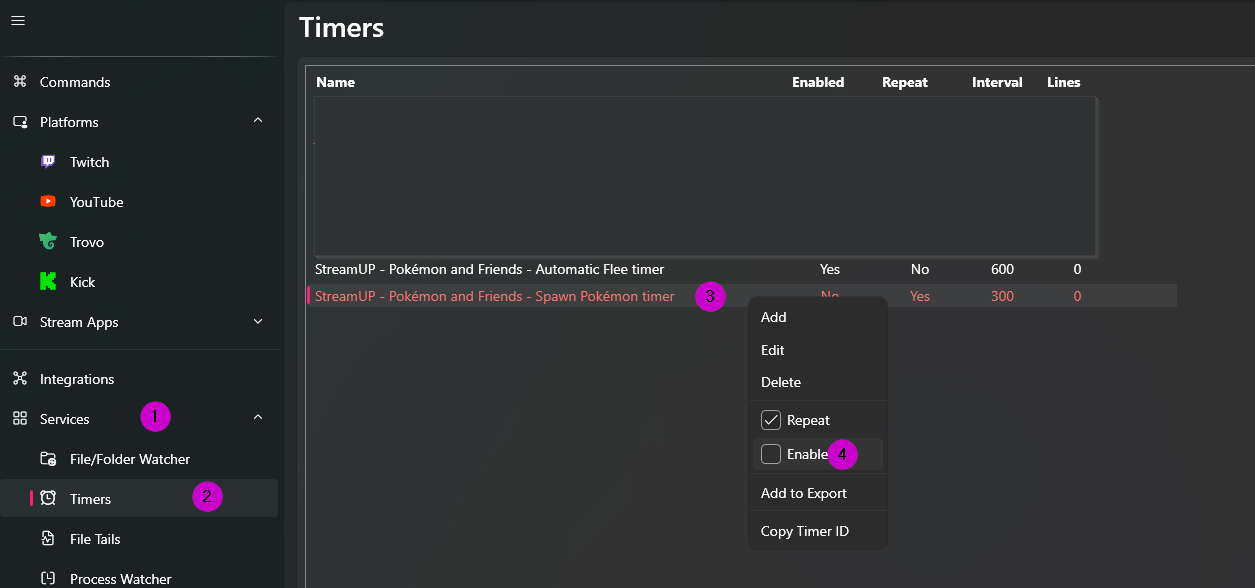
- Go to the Services tab within Streamer.Bot (1)
- Open the “Timer” tab (2)
- Right click on the "Spawn Pokemon" Timer (3)
- Then Click Enable (4)
INFO
If you’re happy with the defaults, you only need to enable “StreamUP - Pokémon and Friends - Spawn Pokémon Timer”.
Changing and Enabling “StreamUP - Pokémon and Friends - Spawn Pokémon Timer”
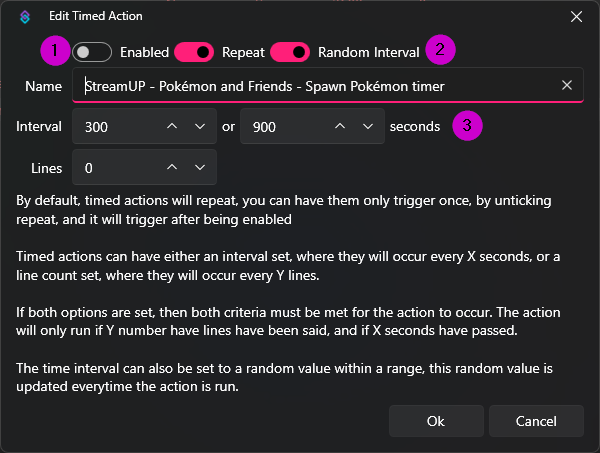
- Double-click “StreamUP - Pokémon and Friends - Spawn Pokémon Timer”
- Toggle the “Enabled” box, so that it is on. (1)
- Ensure Random Interval is On (2)
- Change the first and second box values (in seconds) to adjust spawn frequency (3)
- Press “Ok”
INFO
From the moment you click “Ok”, Pokémon will spawn according to that timer.
Changing the “StreamUP - Pokémon and Friends - Automatic Flee Timer”
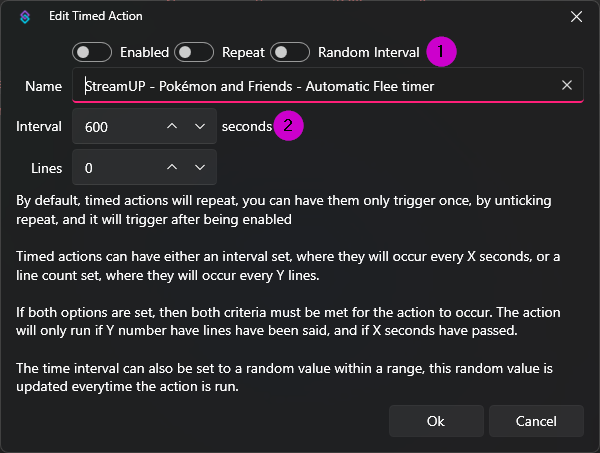
- Double-click “StreamUP - Pokémon and Friends - Automatic Flee Timer”
- Change the value (in seconds) to adjust how quickly Pokémon flee (2)
- You can also enable “Random” to make flee times variable (1)
- Press “Ok”
WARNING
Do NOT enable this timer manually when testing — it is enabled automatically when a Pokémon spawns.
Using the Status Effect
This version comes with a new feature, you can now apply status effects such as Poisoning and Confusion. This feature is optional however there is no setting in the Settings UI to turn it off. If you do not want this feature on just leave the action disabled or have no triggers on it and it can not be used.
And that should be it! StreamUP - Pokémon and Friends - Cloud Edition should now be up and running. If you have any questions or need support, feel free to ask us in Discord!
How To Use
This next section will explain how to use and get the most out of your Pokemon and Friends
Triggers
In this update we replaced the old Select an Action when ... settings and introduced Triggers. These triggers will now run on certain event.
So all you need to do is to create a new action and add the relevant trigger and the aub-actions you want.
These events are:-
- Pokemon Spawned (
pafSpawned) - Pokemon Shiny Spawned (
pafShinySpawned) - Pokemon Captured (
pafCaptured) - Pokemon Fled (
pafFled) - Pokedex Checked (
pafPokedexChecked) - Any Ball Thrown (
pafAnyBallThrown) - Pokeball Thrown (
pafPokeballThrown) - Great Ball Thrown (
pafGreatBallThrown) - Ultra Ball Thrown (
pafUltraballThrown) - Master Ball Thrown (
pafMasterballThrown) - Pokemon Status Applied (
pafStatusApplied) - Pokemon Status Wore Off (
pafStatusWoreOff) - Catch Failed/Escaped (
pafCatchFailed) - Pokemon Error (
pafError)
INFO
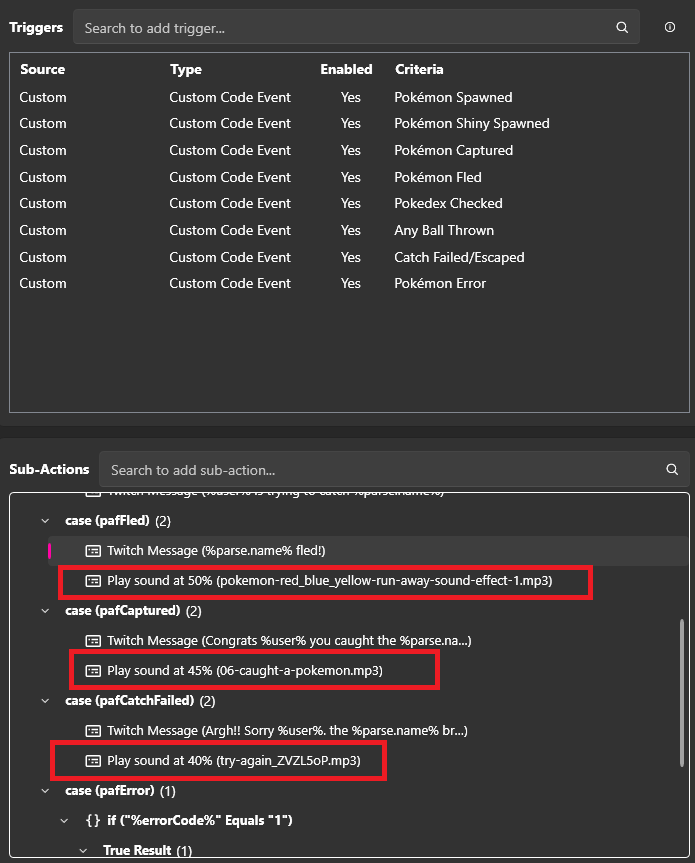
If you want to use a switch case like I've added the trigger code in the brackets ()
You can also edit the switch case provided in StreamUP Pokemon Admin • Pokemon and Friends • Outputs and just add the sub-actions there, just like piQmi has done below.
Arguments
When you use the triggers you have access to a certain amount of triggers.
For Catch, Spawn, Flee -
| Argument | Description |
|---|---|
%parse.id% | The Pokédex ID number of the Pokémon |
%parse.name% | The name of the Pokémon |
%parse.captutureRate% | The base catch rate of the Pokémon (0–255) |
%parse.isShiny% | Whether the Pokémon is shiny (true/false) |
%parse.spriteUri% | URL to the Pokémon's sprite image |
%parse.descriptions[i]% | Pokédex description entry at index i |
For Pokedex Checked -
| Argument | Description |
|---|---|
%url% | Link to the stream's Pokédex page for this Pokémon |
%name% | The name of the Pokémon looked up |
%pokeId% | The Pokédex ID number of the Pokémon |
%description% | The Pokédex description text |
%image% | URL to the Pokémon's image |
For Status Applied/Worn Off
| Argument | Description |
|---|---|
%statusName% | This is the name of the Status that has been applied |
%statusValue% | This is the value that has been applied |
Commands
Commands will be the main way, other than the Channel Point Redeem, that a user will interact below are a list of the commands and there intended use.
!pokedex• Allows viewers to find out about pokemon if its on screen or the name or number you enter, and it will also give a link to that streams pokedex which displays the pokemon caught.!poke-reset• In the Event something should go wrong, you now have a way of resetting the game.!poke-spawn• Allows you to spawn a pokemon, if no input is given it will be random however you can add a name or number to get a specified pokemon.
WARNING
Please remember commands are disabled by default upon importing them.
Sprite Types
Default Sprite


Showdown Animated Sprite


Official Artwork


Pokémon HOME Sprite


The Math
For the Nerds that care here is a quick overview of the math, don't worry if you don't understand you go and be a Pokemon Master. You don't need to know the math if you 'Catch em All'!
Catch Rate
The Catch Rate is a percentage-like value calculated from several factors.
The formula is:
Base Catch Rate + Catch Boost + Status Boost + Ball Boost = Final Catch Rate
Here's how it works:
Each Pokémon spawns with one of four Base Catch Rates: 50, 33, 25, or 20. The rarer the Pokémon, the lower its Base Catch Rate.
You can then increase this value with a Catch Boost. For example, if your Catch Boost is 10, a Pokémon with a Base Catch Rate of 50 now has a Catch Rate of 60.
Next, any Status Effect is added. If the status effect provides another 10, your Catch Rate increases from 60 to 70.
Finally, the Poké Ball you use adds its own bonus. For example, a Great Ball adds 10, increasing your Catch Rate from 70 to 80.
You can think of the final Catch Rate as a percentage. In this example, a Catch Rate of 80 gives you an 80% chance of successfully catching the Pokémon.
Note: If the Final Catch Rate is greater than
100, the catch is guaranteed.
Base Catch Rate
Every Pokémon has a Base Catch Rate based on its rarity. Rarer Pokémon have a lower Base Catch Rate.
Catch Boost
This is a permanent bonus that is added to the Base Catch Rate every time you attempt to catch a Pokémon.
Status Effect
This boost only applies while the status effect is active. If the effect wears off, it no longer increases the Catch Rate.
Ball Boost
Each type of Poké Ball provides its own Catch Rate bonus, which is added when that ball is used.
Shiny Rate
This has been overhauled and is now a integer and it refers to how often a shiny will appear, if you set it to 256 then 1 in 256 will be shiny. So the lower the number the more frequent a shiny pokemon will appear.
Flee Rate
Flee rate is a simple percentage, the higher the number the higher the chance of the Pokemon fleeing if it breaks out of the ball.
Status Worn Off
This is also a simple percentage, the higher the number the higher the chance of the status wearing off.
Ball Rate
We have already spoken about catch rates, and as you are already aware when you redeem Perform Catch. A Random Ball will be selected from the ones that are enabled.
The way the weighting works is it's like buying a raffle ticket, if you set:
- Poke to 100
- Great to 30
- Ultra to 10
- Master to 1
Then those numbers would correspond to the amount of tickets each get, Poke getting 100 and Master getting 1 and so on. Then imagine pulling out 1 ticket and that the ball you use.
The higher the number, the more tickets one would hypothetically get and therefore the higher chance of that ball being selected.