Importing into Streamer.bot
Please Note
Some steps are accompanied by images, you can click on these images to make them bigger. Where appropriate they have been tagged with Numbers, you can find the corresponding number in brackets (X)
Not all StreamUP Products will have a Streamer.bot Import, if they do they will have a special tag.
It will look like this! -> Streamer.bot Import
This simple guide will talk you through how to Import our codes into Streamer.bot. Usually this involves taking the .sb we provide you, and putting this into streamer.bot.
- Firstly make sure Streamer.bot is open and fully upto date.
- Now in the download nativgate to the
3-BOTfolder. (1)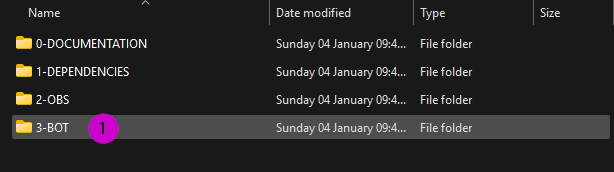
- Find your
.sbfile. (2)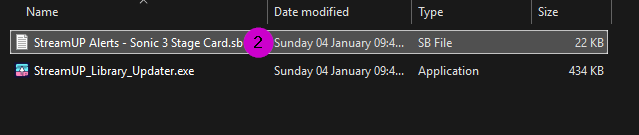
- Reopen Streamer.bot and open the Import Box (3)

- With the Import box you can either Drag and Drop the
.sbor you can open the file in notepad and just copy and paste it in.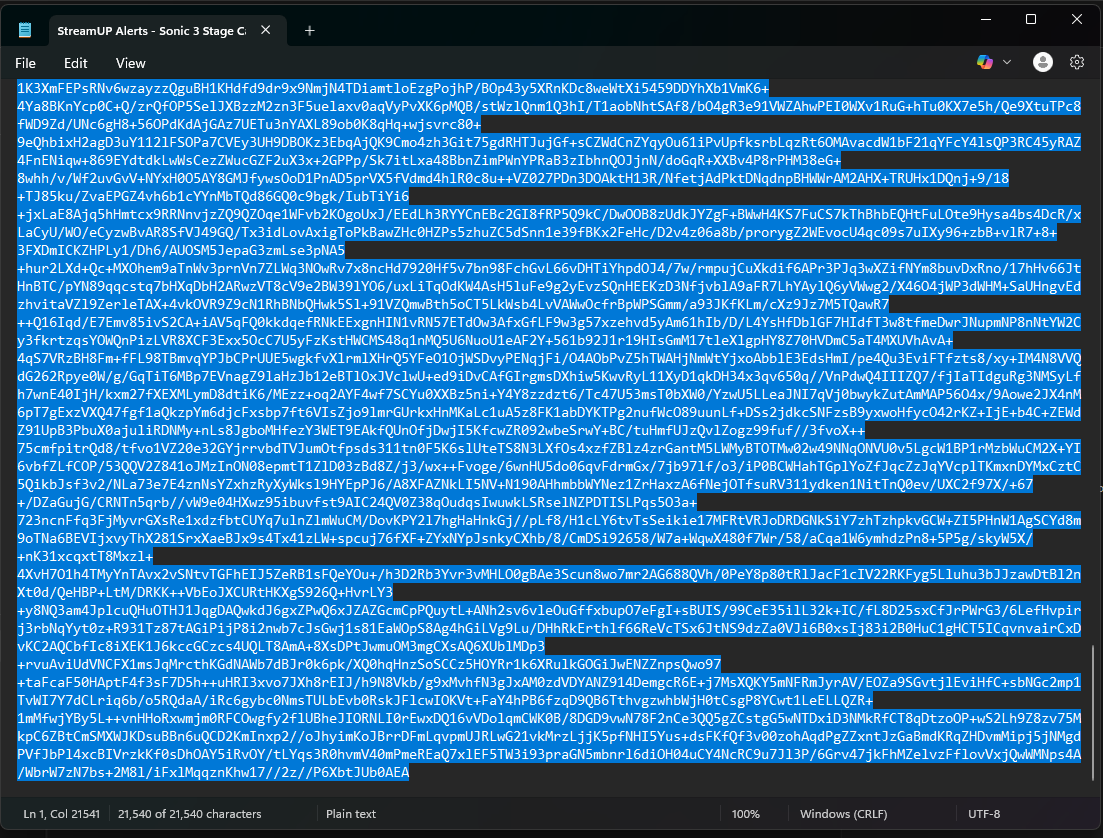
INFO
If drag and drop isn't working this could be because Streamer.bot is running in admin mode. This is something the developer of Streamer.bot doesn't advise so be careful of that.
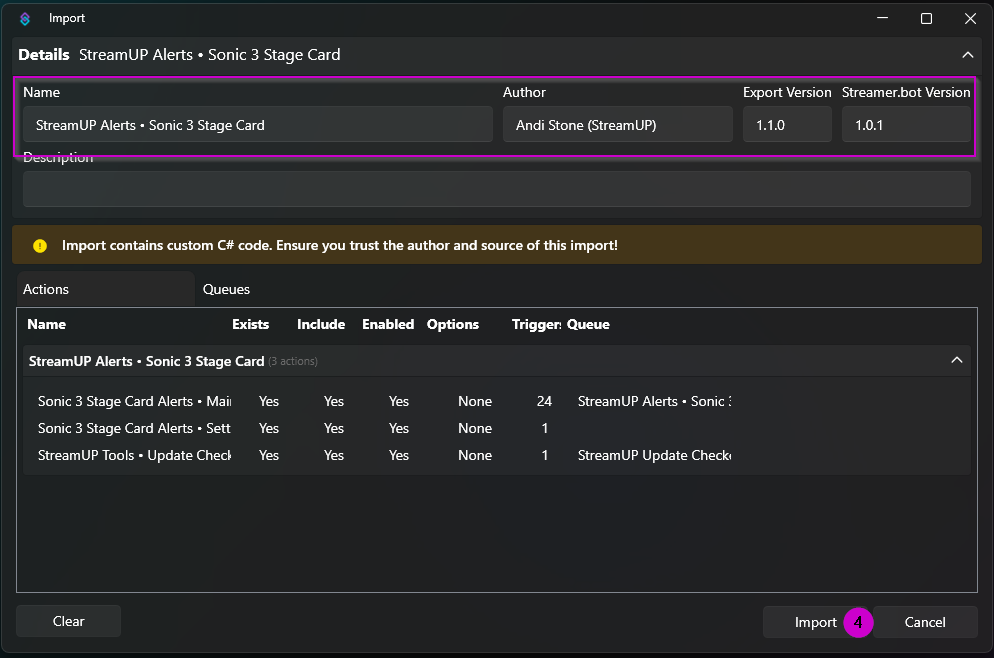
- Once Imported you will see the actions, and information about the import like Name, Author and Streamer.bot Version it came from.
- If all looks good press Import. (4)
- If the Import has
C#code you will be met with a prompt. PressYes(5)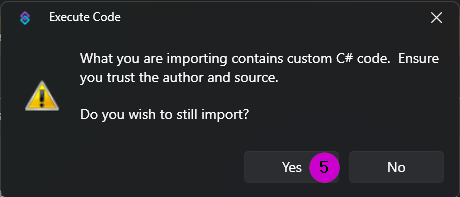
- If items are being overwritten, which is likely if you are updating one of our products you will be met with a prompt. Press
Ok(6)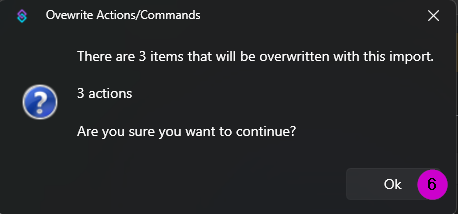
- The final prompt will tell you any commands or timed actions are disabled by default, this is a security measure built into Streamer.bot you can just press
Ok(7)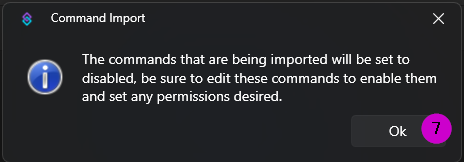
TIP
You will only see the prompts of the things that are relevant, for example if your installing something for the first time, you will not see the Overwrite prompt, if the import code contains no commands you won't see the command prompt.
And now you should have completed your importing.