Configuring StreamUP Hotkey Display
by Andi
Version: 1.2.2
Shows what keyboard shortcuts you're pressing in real time. There's a dock in OBS that displays the current key combination, and you can push it to a text source so your viewers can see it on screen too.
Handy for tutorials, educational streams, or any time you want people to follow along with what you're doing. No more "wait what did you just press?" in chat.
Requires OBS 31.1 or newer. Works on Windows, macOS and Linux. Linux needs X11. Wayland will warn you that it's not supported.
How It Works
The plugin hooks into your keyboard and mouse inputs and displays whatever combination you're pressing.
Mouse clicks and scrolling only get picked up when you're holding a modifier key, so it's not logging every random click you make. That would get noisy fast.
By default it only captures modifier combos. Ctrl, Alt, Shift, and Super/Cmd with another key. You can turn on single key capture if you want numpad, number row, letters, and punctuation to show too.
The Dock
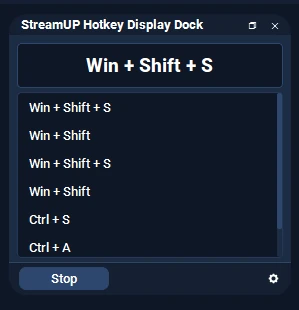
Add it from the Docks menu. What you get:
- Live display of the current key combination
- Scrollable history of recent key presses, size is configurable
- Start and stop toggle right in the dock so you can pause capture without fiddling with settings
- Auto-clear after a set duration so the display doesn't sit there forever
If you'd rather not keep the dock visible, you can bind an OBS hotkey to toggle capture on and off without opening it.
Showing Hotkeys to Your Viewers
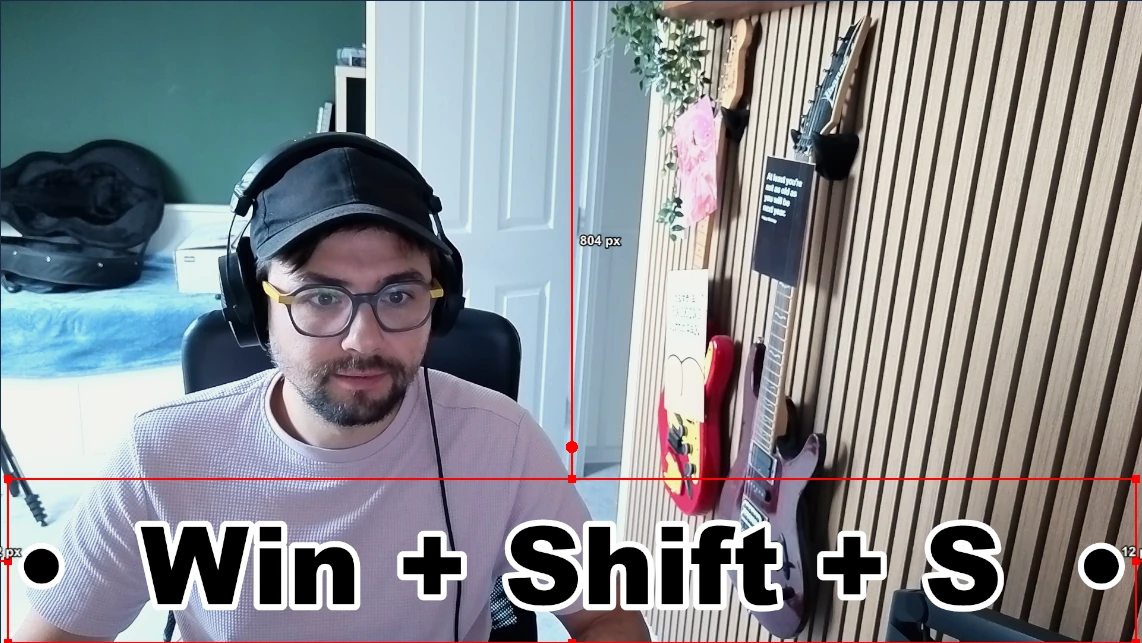
This is where it gets useful for tutorials. You can push the captured key straight into any text source in OBS.
- Drop a text source on your scene (GDI+, FreeType 2, or Pango all work)
- Open the Hotkey Display settings
- Point it at your text source
- Press a key and it appears on stream
There are a few options to tidy it up:
- Display duration so the text disappears after a set time, keeping the screen clean when you're not pressing anything
- Prefix and suffix around the key text, so you can wrap it in something like
Pressed: [Ctrl + S]if you want - Auto-show the text source when a key is pressed, so you can leave it hidden by default and only have it appear when there's something to show
Key Capture Options
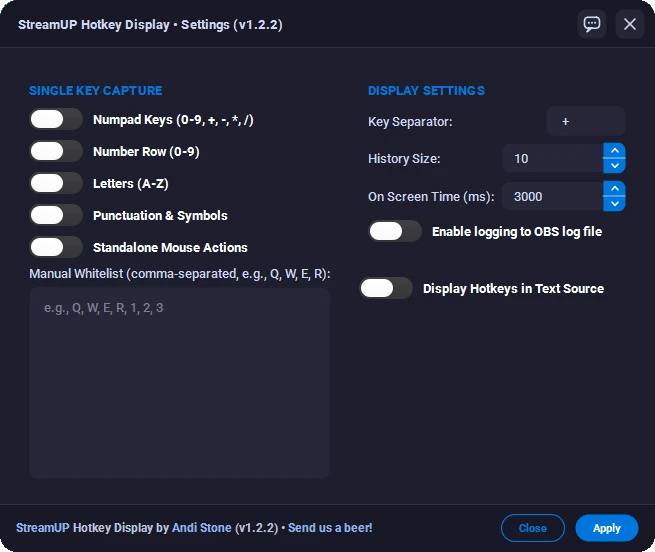
The defaults work for most people but there are a few things you can tweak.
- Modifier combos are captured by default (Ctrl, Alt, Shift, Super/Cmd plus a key)
- Single key capture is optional. Turn it on for numpad, number row, letters, punctuation
- Manual whitelist lets you specify individual keys you want captured on their own, even without the full single key option. The whitelist field supports multiple lines so you can list them out clearly
- Custom key separator. Default is
" + "but you can change it to" - "or whatever reads best for your style
OBS Hotkey
Bind a hotkey in OBS Settings under Hotkeys to toggle the display on and off without opening the dock. Useful when you want to quickly mute the capture mid-stream without breaking flow.
WebSocket API
Registered under the streamup-hotkey-display vendor. Four requests.
| Request | What it does |
|---|---|
get_status | Returns whether capture is active and the last combination |
enable | Turns on keyboard capture |
disable | Turns off keyboard capture |
get_last_combination | Returns the most recent key combination |
It also emits key_pressed events, so external tools like Stream Deck or Streamer.Bot can react to input in real time. Want a sound effect when you hit a specific combo? That's how you do it.
Good to Know
- On Linux you need X11. Wayland will pop a warning because there's no portable way to capture global input on Wayland without compositor-specific hacks.
- The plugin doesn't log anything to disk by default. You can enable logging in the Display Settings if you want a log file. It just shows you what's being pressed right now.
- If you've got a text source set up and capture is off, nothing gets sent. The source stays empty or hidden.
- Got a request or found a bug? There's a Feedback button in the settings dialog that takes you straight there.