Configuring StreamUP
by Andi
Version: 2.4.0
The main StreamUP plugin for OBS. A collection of tools, shortcuts and quality of life features that fill in the gaps OBS doesn't cover out of the box. Source locking, browser source refreshing, device management, a scene organiser, a customisable toolbar, backup and restore for your whole setup, multi-dock containers, an adjustment layer source, plugin update checking, and a full WebSocket API.
If you've ever wished OBS had "just one more button" for something, this is probably it.
Requires OBS 31.1 or newer. Works on Windows, macOS and Linux.
The StreamUP Menu
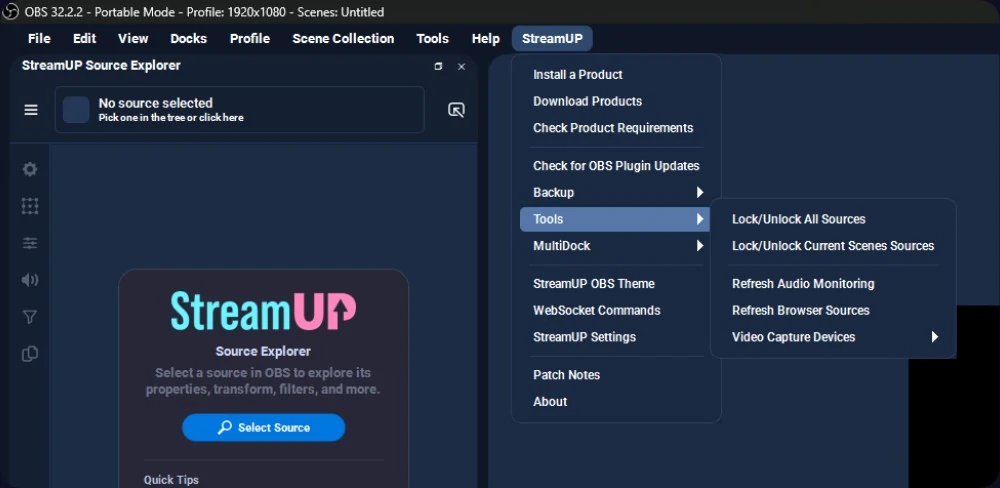
StreamUP gets its own menu in the OBS menu bar, next to Help. That's the way into everything below.
Source Locking
Lock all sources in place so you don't accidentally drag something mid-stream.
- Lock or Unlock All Sources locks every source across every scene in one go
- Lock or Unlock Current Scene Sources only affects the scene you're on right now
A notification pops up confirming the current lock state so you know what just happened. Available from the menu, the dock, the toolbar, hotkeys, and WebSocket.
Browser Source Refresh
Hit Refresh All Browser Sources and every browser source in your setup gets reloaded. No more right-clicking each one individually when something gets stuck.
The plugin handles this by toggling the frame rate internally, which forces a proper reload without removing and re-adding the source.
Audio Monitoring Refresh
Refresh Audio Monitoring resets audio monitoring for all sources. If you've ever had audio routing get stuck or monitoring just stop working after a while, this fixes it. One click, everything resets cleanly.
Video Capture Devices
Three tools for managing your cameras and capture cards.
- Activate All wakes up every video capture device in your setup
- Deactivate All powers them all down
- Refresh All toggles devices off and back on again, which fixes cameras that didn't wake up properly when OBS launched
All three are available from the menu, dock, toolbar, hotkeys, and WebSocket.
Transition Copy and Paste
Copy show and hide transitions from one source and paste them onto another. Saves a lot of time when you're setting up consistent transition behaviour across multiple sources.
- Copy Show Transition stores the selected source's show transition
- Copy Hide Transition stores the selected source's hide transition
- Paste Show Transition applies the stored show transition to whichever source you've got selected
- Paste Hide Transition same deal but for hide transitions
A notification confirms each action so you know it went through. Available via hotkeys and WebSocket.
Quick Source Actions
A few handy shortcuts for working with sources faster.
- Group Selected Sources wraps whatever you've got selected into a new group. No more right-click, group, confirm
- Toggle Visibility of Selected Sources flips the visibility of all selected sources at once. The dock button even shows a real-time indicator of the current state
- Open Selected Source Properties opens the properties dialog for the selected source
- Open Selected Source Filters opens the filters dialog
- Open Selected Source Interact Window opens the interaction window (useful for browser sources)
- Open Current Scene Filters opens filters for the scene itself
All available through hotkeys, and most through the dock and WebSocket too.
StreamUP Dock
A small dock with quick-access buttons for the tools you use most. Add it from the Docks menu or it shows up automatically.
Every button is optional. Go to Settings > Dock Configuration to toggle which ones appear:
- Lock or Unlock All Sources
- Lock or Unlock Current Scene Sources
- Refresh Browser Sources
- Refresh Audio Monitoring
- Video Capture Device controls (Activate, Deactivate, Refresh)
- Group Selected Sources
- Toggle Visibility of Selected Sources
Right-click the dock to jump straight into configuration. The visibility toggle button updates in real time to reflect the actual state of your selected sources.
StreamUP Toolbar
A slim, customisable toolbar that replaces or supplements the default OBS Controls dock. Position it at the top, bottom, left, or right of the OBS window.

Buttons on the left, a flexible spacer in the middle, and the OBS status readouts on the right.
Toolbar Settings
- Position to dock it where you want (Top, Bottom, Left, Right)
- Size in three tiers (Small, Medium, Large)
- Alignment to sit the run at the Start, the Centre, or the End of the bar. When the toolbar is docked left or right, Start becomes the top and End becomes the bottom
- Show/Hide master toggle
The StreamUP button always stays pinned at the far end, whatever the alignment.
Editing the Toolbar
Right-click the toolbar and choose Edit Toolbar. The bar itself becomes the thing you edit, so what you see while arranging is the toolbar, not a preview of one.
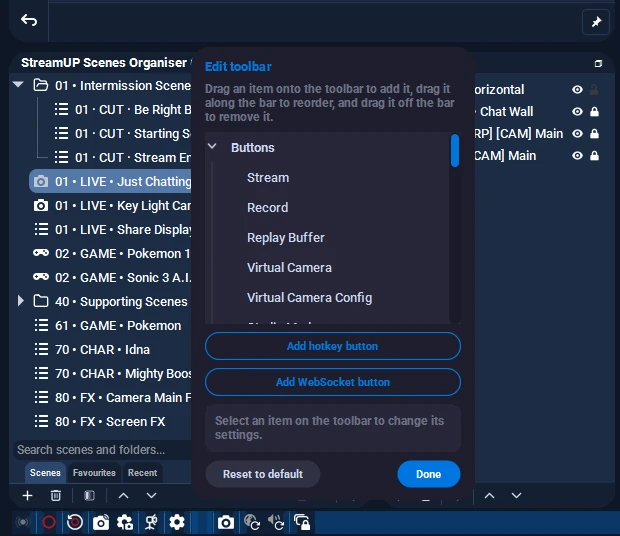
- Drag an item from the panel onto the bar to add it
- Drag items along the bar to reorder
- Drag an item off the bar to remove it
- Click anything on the bar to change its settings
Press Done when you're happy, or Reset to Default to start fresh. Existing layouts from older versions are carried across automatically, with a one-time note explaining the change.
What You Can Put On It
- Built-in buttons for streaming, recording, replay buffer, virtual camera, studio mode and settings. Record and replay buffer bring their pause and save companions with them
- Dock buttons that show or hide any OBS or StreamUP dock
- Hotkey buttons that fire any OBS hotkey, with your choice of icon and label
- WebSocket buttons that fire an obs-websocket request (see below)
- Status readouts showing what the OBS status bar shows (see below)
- Spacers and separators to group things up
WebSocket Buttons
A button that runs an obs-websocket request when you press it. Anything obs-websocket can do from a Stream Deck, your toolbar can do with one button.
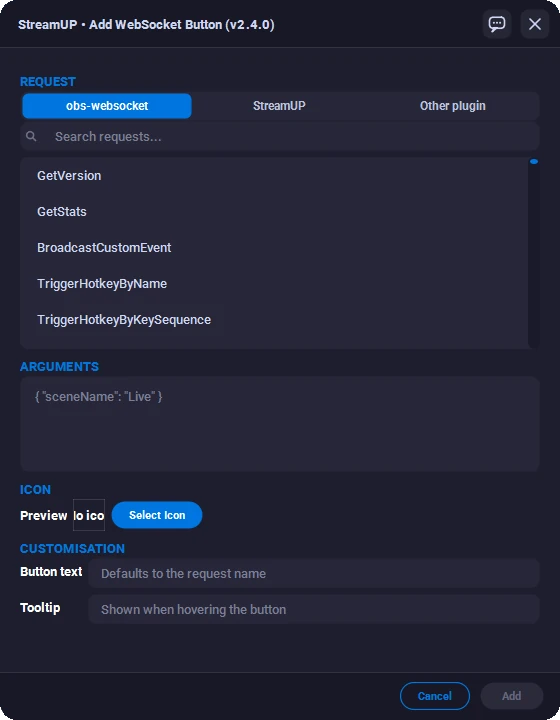
Pick from the standard obs-websocket requests, from StreamUP's own, or name another plugin's vendor and request yourself. The common requests give you real fields to fill in rather than making you write JSON, with your scenes, sources and transitions offered as dropdowns, and there's a raw JSON box for anything else.
Requests that return something, like GetStats or GetRecordStatus, show it in a small readout next to the button and put the full result on your clipboard at the same time. Failures tell you why. Requests that just do a thing and return nothing stay quiet.
Status Readouts
The numbers from the OBS status bar, as toolbar items you place and order like anything else. This adds a readout to your toolbar; it doesn't replace or hide the OBS status bar.
| Readout | Shows |
|---|---|
| CPU usage | Processor load, the same figure OBS reports |
| Frame rate | Current output frame rate |
| Missed frames | Frames lost to rendering lag, with a percentage |
| Recording time | How long the current recording has been running |
| Stream time | How long you've been live |
| Stream bitrate | Outgoing stream bitrate |
| Recording bitrate | Bitrate being written to disk |
| Status message | Recording started, streaming stopped, encoding overloaded |
Each one is an icon and a value, with the full name on hover. Per item you can turn the icon off and leave the bare number, and the two clocks can show hours from the start rather than changing shape when they pass an hour.
Resetting. Right-click a readout to reset it. Missed frames counts up for as long as OBS has been open, so a rough morning would otherwise follow you into the evening's stream. Resetting doesn't touch OBS's own counter, it just counts from the moment you asked. The status message can be cleared early the same way. The clocks and the live readings don't offer it, because a recording time you can zero is a recording time that lies.
Side-docked. Dock the toolbar left or right and every readout stacks, icon above value, in a shorter form, so the bar stays as narrow as it was.
The status messages are worked out from OBS's own events rather than read off its status bar, so the wording is StreamUP's and won't match OBS word for word.
Spacers
A spacer holds a gap of a set width. Select one and set its size, or grab its edge on the bar and drag it.
Tick Fill available space and it stops being a set width and takes whatever the bar has spare instead. That's how you put buttons on the left and readouts hard against the right, and a second one gives you a group in the middle as well. The alignment setting moves the whole bar in one go and can't say that, so a flexible spacer takes over from it wherever you use one. Its size becomes a minimum rather than a length, so the groups either side never touch.
A flexible spacer is also the first thing to give room back when the bar runs short, so every spacer you sized by hand keeps the size you gave it.
Scene Organiser
A full replacement for the built-in OBS scene list. Adds folders, colour coding, icons, tabs, search, drag and drop reordering, and a bunch of quality of life features the default list doesn't have.
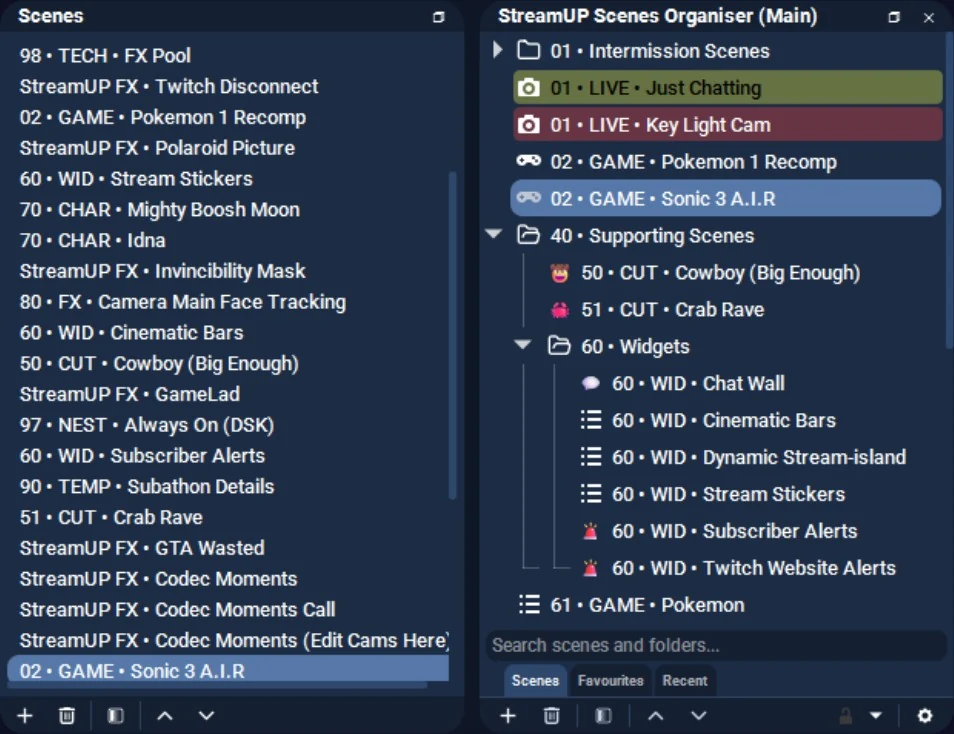
The default OBS scene list on the left, the same scene collection in the Scene Organiser on the right.
Tabs
The dock can hold as many tabs as you like, and each one keeps its own set of scenes and folders, saved per scene collection.
- Favourites. Right-click a scene and add it. Switch the tab off in Settings if you don't want it
- Recent. The scenes you've been live with most recently
- Your own. Add as many as you need, for a show, a game, a guest, whatever
Search works on every tab, and pressing Enter sends the top result straight to program.
Undo and Redo
Ctrl+Z and Ctrl+Y cover moves, folders, renames and colours. A drag that went somewhere odd is one keypress away from being put back.
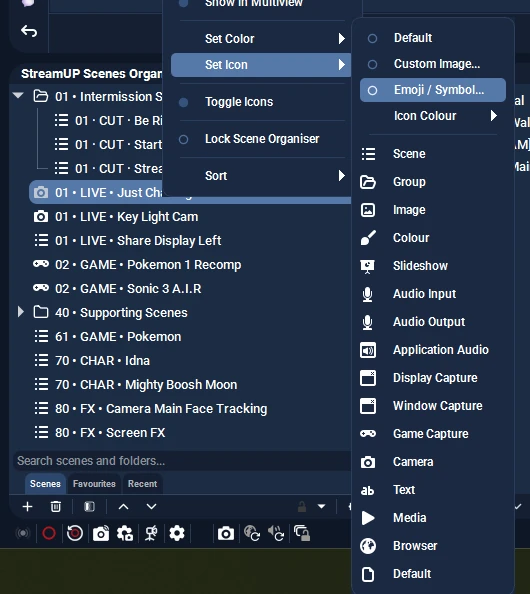
Icons
- Custom icons on scenes and folders, taken from your OBS theme or an image off your drive
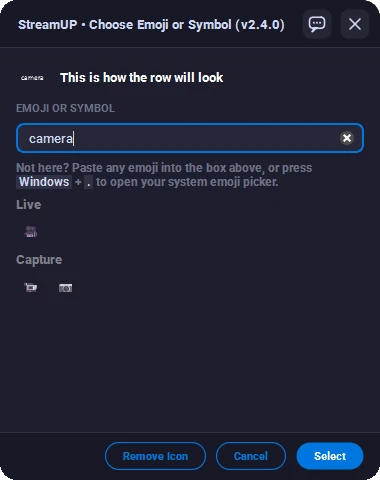
- Emoji and symbols, with a searchable picker, or paste in any character you like
- Icon colours, including on the default icon
- Open and closed folder icons depending on the folder's state
- Folder guide lines down the tree, switched on in Settings, Scene Organiser
Right-click a scene or folder and go to Set Icon. Pick one of the OBS source icons from the list, Custom Image... for a file off your drive, or Emoji / Symbol... for the picker.
Setting It Up
Enable it in Settings > Scene Organiser. The main options:
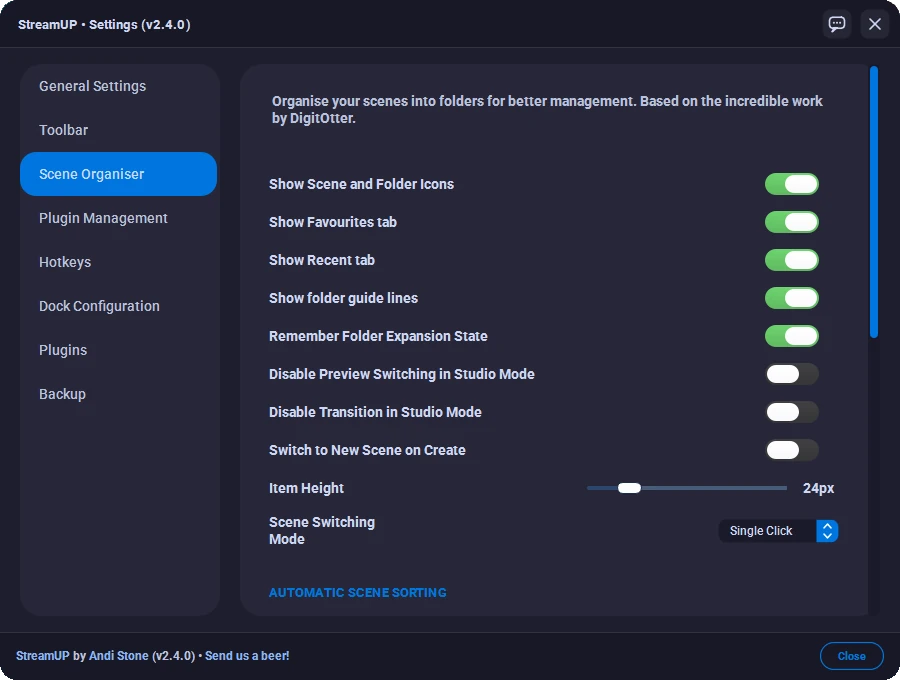
- Show scene and folder icons for visual clarity
- Show Favourites tab and Show Recent tab, if you want either of them
- Show folder guide lines to make it clear which folder each scene belongs to
- Item height in pixels, from 19 to 48. The default of 24px matches the normal OBS Scenes and Sources docks
- Scene switching mode lets you choose single click or double click to switch scenes
- Automatic sorting with options for alphabetical A-Z, Z-A, newest first, or oldest first. Or leave it on none and sort manually
- Keep folders grouped at top so they don't get lost in the list
- Remember folder expansion state across OBS restarts
- Disable preview switching in Studio Mode if you don't want the preview to jump around
- Disable transition firing in Studio Mode for the same reason
- Switch to new scene on create switches OBS to a scene as soon as you make it in the organiser. In Studio Mode it only goes to preview, never straight to program
If you're coming from the old SceneTree plugin, there's a one-click import to bring your existing layout across.
The Dock Toolbar
Along the top of the Scene Organiser dock:
- Add Folder
- Remove selected item
- Open Filters for the selected scene
- Move Up / Move Down
- Expand All / Collapse All (the button updates dynamically)
- Lock the organiser layout
- Search box that filters by scene or folder name without collapsing the tree
Scene Context Menu
Right-click a scene for the full set of options:
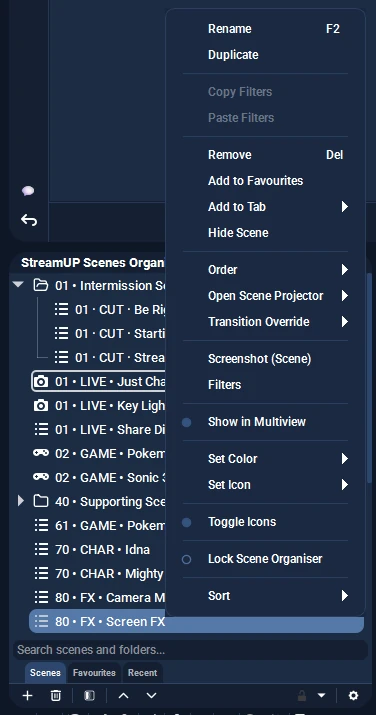
- Rename (F2) and Duplicate
- Copy Filters / Paste Filters to move filters between scenes without rebuilding them
- Remove (Del)
- Add to Favourites, or Add to Tab to put it on one of your own tabs
- Hide Scene to keep it out of the list
- Order to move it up, down, to the top or to the bottom
- Open Scene Projector
- Transition Override, the same as the OBS scene list. Pick a transition and a duration for a scene, or None to clear it. It's stored where OBS stores its own, so an override set here shows up in the OBS scene list and the other way round
- Screenshot (Scene)
- Filters for the scene
- Show in Multiview
- Set Color and Set Icon, including icon colour
- Toggle Icons
- Lock Scene Organiser so nothing gets dragged by accident
- Sort A-Z, Z-A, newest first or oldest first
Folder Context Menu
Right-click a folder:
- Rename, delete
- Add a sub-folder
- Create a new scene inside the folder
- Move Up, Down, To Top, To Bottom
Vertical Canvas Organiser
If you run Aitum's Vertical Canvas plugin, you get a second Scene Organiser pointed at your vertical scenes. Same folders, colours, search and drag and drop as the main one, with its own folder layout, so your vertical scenes aren't mixed in with your main ones.
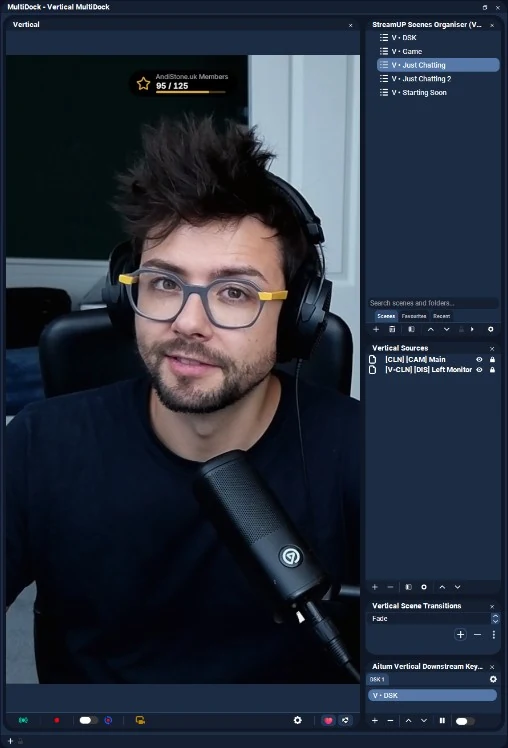
The dock turns up on its own once the vertical canvas is running. Clicking a scene switches it through Aitum's own transition, the same as clicking it in their dock. Linked Scenes are shared with Aitum's own list, so a scene linked in one shows as linked in the other. On the StreamUP theme the Vertical Canvas control row is a proper toolbar, and the virtual camera button goes green while the camera is running. Transition Override is main canvas only, since the vertical canvas runs its switches through Aitum's transition and would ignore it.
Live Scene and Studio Mode
The organiser always highlights whichever scene is live, so you can see what's on air at a glance. In Studio Mode the preview scene is shown in a different colour to keep the two apart. You can move the preview up and down the list with the arrow keys and press Enter to cut it to program, so you can drive a whole show from the keyboard.
Other Bits
- Hide scenes you don't want cluttering the list
- Colour coding for visual organisation, with a built-in colour picker for both folders and scenes so you can pick any shade without leaving OBS
- Drag and drop to reorder scenes and move them between folders
- Search that filters live as you type
- Multi select, so you can drag a run of scenes at once
- F2 to rename, or right-click and Rename. Never a single click
- Your folder layout is backed up every time it saves, so a bad scene collection switch can't take it with it
Multi-Dock System
Combine multiple OBS docks into a single tabbed container. Keeps your workspace tidy when you've got a lot of docks open.
Creating a Multi-Dock
- Go to StreamUP menu > Multi-Dock > New Multi-Dock
- Give it a name
- Drag any OBS dock into the container
Managing Multi-Docks
StreamUP menu > Multi-Dock > Manage Multi-Docks lets you edit, rename, delete, or add docks to your containers.
Each Multi-Dock shows up in the menu with a visibility toggle so you can show and hide them quickly. You can also lock the layout to prevent accidental changes. Everything persists across OBS restarts.
Handy for themed setups. Put your "Streaming" docks in one container, your "Recording" docks in another, and toggle between them.
Multi-Docks drag down to 120px wide, and a wide dock living inside one, like Twitch chat, no longer sets the minimum width for the whole container. Docks pulled back out keep their original sizing. On the StreamUP theme the Multi-Dock body gets rounded corners.
Adjustment Layer Source
A new source type that applies filters to everything underneath it in the scene hierarchy. Works like adjustment layers in Photoshop or After Effects.
Adding One
- In your scene, click + under Sources
- Select Adjustment Layer from the list
- Add filters to it like you would any other source
On OBS 32.2 and newer the Adjustment Layer shows its own icon in the Add Source list and the audio mixer. Older OBS versions show the generic colour source icon instead.
Whatever filters you put on the adjustment layer affect all the sources below it. One blur filter on the adjustment layer instead of five on five different sources.
Properties
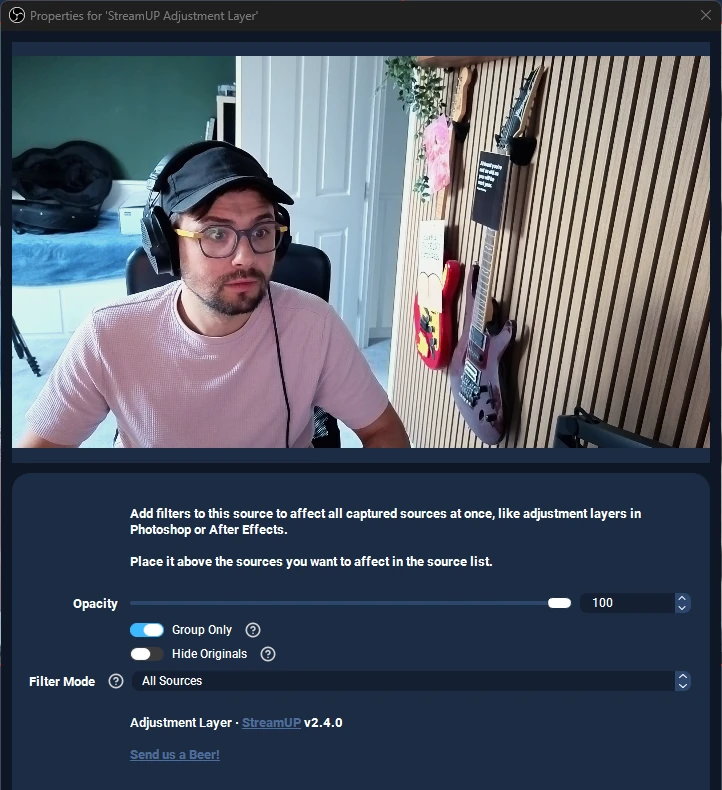
- Opacity controls the blend strength from 0% to 100%
- Group Only limits the effect to sources in the same group. Turn it off and it affects everything in the scene
- Hide Originals hides the unfiltered versions of affected sources, showing only the filtered output
- Filter Mode gives you three options:
- All Sources applies to everything below
- Include List Only applies only to sources you pick
- Exclude List applies to everything except sources you pick
- Source Picker for adding and removing sources from the include or exclude list
When to Use It
Any time you'd otherwise be copying the same filter onto multiple sources. Colour correction across a whole scene, a blur over everything behind an overlay, a shared LUT. One adjustment layer, one filter, done.
Backup and Restore
One file holds your whole OBS setup: scene collections, profiles, plugin settings, themes and OBS settings. Browser caches and logs are skipped, so a setup filling 563MB on disk backs up to about 500KB.
Open it from StreamUP menu > Backup, or the Backup tab in settings.
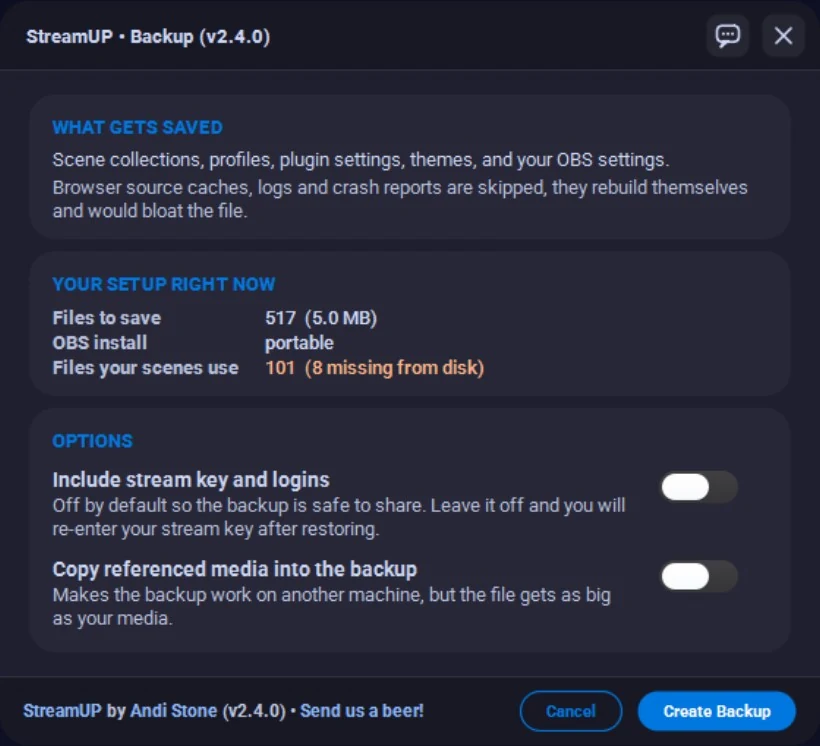
It tells you what it's about to save before you save it, including any files your scenes point at that are no longer on disk.
Automatic Backups
Backups happen on their own when OBS starts, once a day, keeping the last 10. There's always a recent one without you having to remember. Turn it off in Settings > Backup if you'd rather handle backups yourself.
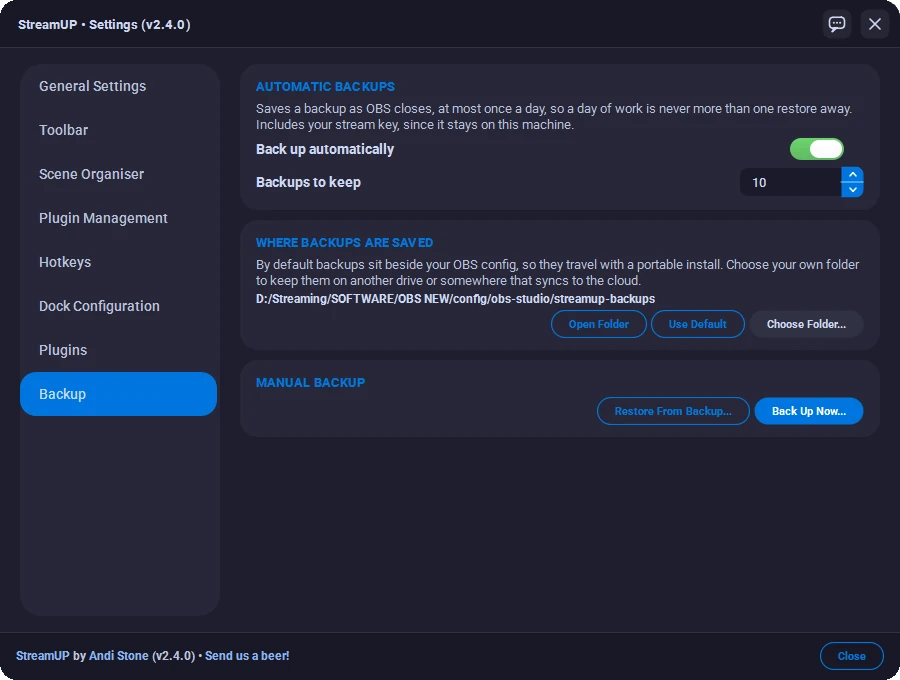
Your stream key is left out of manual backups by default, so they're safe to share. Automatic ones keep it, since those stay on your machine.
Restoring
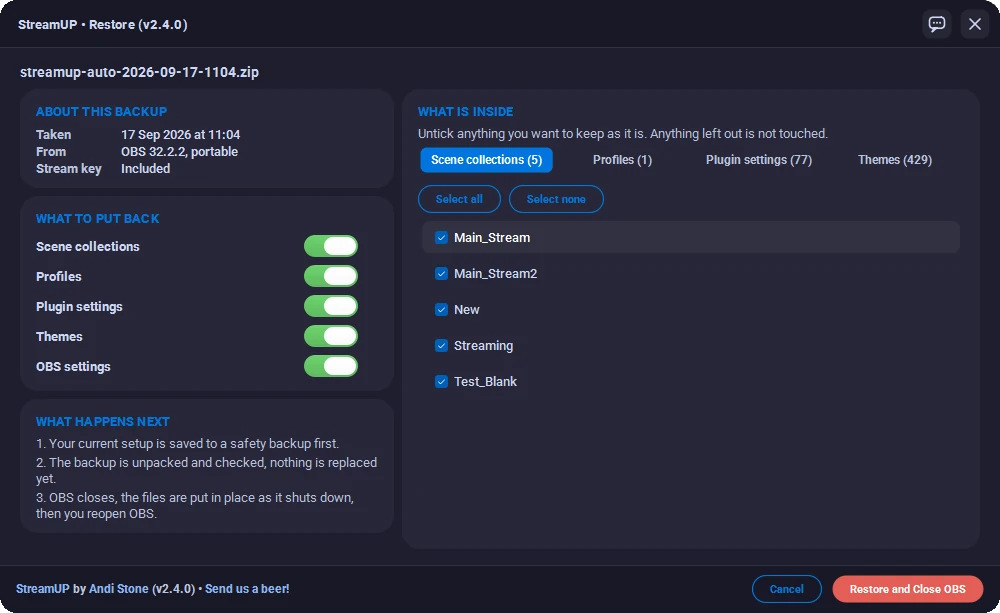
Restoring shows you what's in the file first and warns about any plugins you no longer have. It saves a safety copy of your current setup, puts everything back as OBS shuts down, and tells you how it went when you reopen.
You don't have to take all of it. Pick which parts come back, scene collections, profiles, plugin settings, themes or OBS settings, and within scene collections pick exactly which ones, with Select all and Select none. Anything you leave unticked is never even unpacked, so it can't be touched. Files that already match are left alone, so restoring one lost collection out of thirty writes one file.
Works the same on a normal install or a portable one.
Missing Files
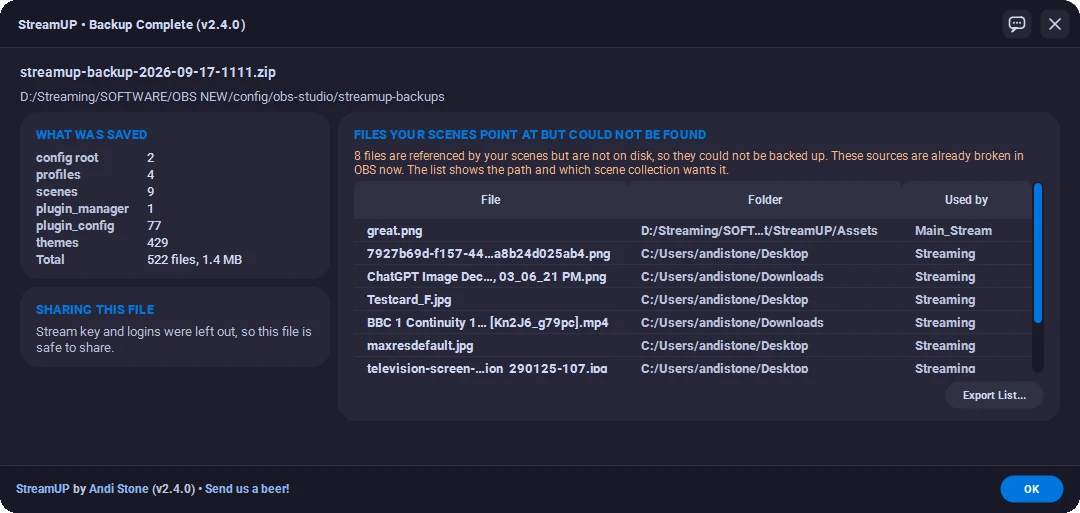
Backing up checks every file your scenes point at and tells you which ones are no longer on disk. Those sources are already broken in OBS, and nothing has ever told you which. The list shows the path and the scene collection that wants it, you can right-click any row to copy the name or path, and you can export the lot to a text file or spreadsheet.
Plugin Update Checker
The plugin scans all your installed OBS plugins for available updates. It runs automatically when OBS starts up, or you can trigger it manually from StreamUP menu > Check for OBS Plugin Updates.
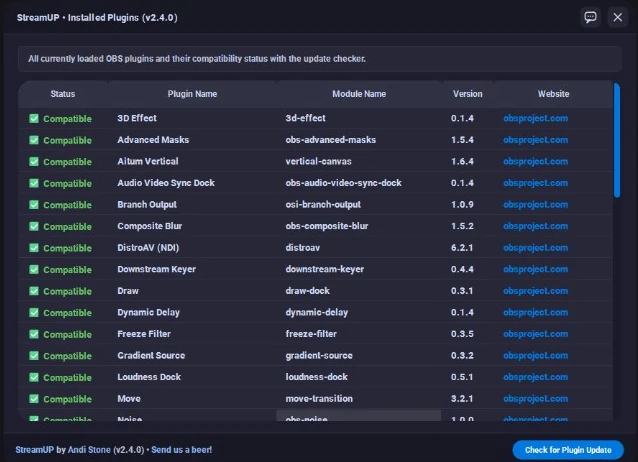
Each plugin shows its current version, the latest available version, and a direct link to download the update. Shift-click the menu item to force a cache refresh if you think something's out of date.
Plugins that failed to load get an Open Folder button that opens the folder with the module file highlighted, so you can remove or replace it. Hover the status to see why it wouldn't load, pulled from your OBS log.
Plugins that are switched off get their own section. A plugin turned off in OBS's own Plugin Manager, or blocked because OBS is in Safe Mode, used to show up as missing and send you off to download something you already had. Now it tells you where to switch it back on instead. A required plugin being off always shows, even if you've skipped other reminders.
Product Installer (Windows)
On Windows, you can install StreamUP products directly through the plugin.
- Install a Product loads
.streamupproduct files. Shift-click to force a reinstall - Download Products opens the StreamUP store
- Check Product Requirements scans for any missing plugins that a product needs. Shift-click to refresh the cache
- Font Checker automatically detects missing fonts when installing products and gives you download links
Hotkeys
17 hotkeys you can bind in Settings > Hotkeys or through the StreamUP settings hotkeys tab.
| Hotkey | What it does |
|---|---|
| Lock or Unlock All Sources | Toggles lock state across all scenes |
| Lock or Unlock Current Scene Sources | Toggles lock state for current scene only |
| Refresh Browser Sources | Reloads all browser sources |
| Refresh Audio Monitoring | Resets audio monitoring for all sources |
| Open Selected Source Properties | Opens properties for the selected source |
| Open Selected Source Filters | Opens filters for the selected source |
| Open Selected Source Interact Window | Opens interaction window for the selected source |
| Open Current Scene Filters | Opens filters for the active scene |
| Activate All Video Capture Devices | Wakes up all cameras |
| Deactivate All Video Capture Devices | Powers down all cameras |
| Refresh All Video Capture Devices | Toggles all cameras off and on |
| Copy Show Transition | Stores the selected source's show transition |
| Copy Hide Transition | Stores the selected source's hide transition |
| Paste Show Transition | Applies stored show transition to selected source |
| Paste Hide Transition | Applies stored hide transition to selected source |
| Group Selected Sources | Wraps selected sources into a group |
| Toggle Visibility of Selected Sources | Flips visibility of all selected sources |
The StreamUP settings dialog has its own hotkeys tab where you can bind and manage all of these in one place. Single hotkey recording at a time so you don't accidentally set duplicates.
Settings
Open from StreamUP menu > StreamUP Settings. Everything's organised into pages down the left: General Settings, Toolbar, Scene Organiser, Plugin Management, Hotkeys, Dock Configuration, Plugins and Backup.
General
- Run plugin checker on OBS startup to automatically check for plugin updates when OBS launches
- Mute system tray notifications if you don't want popups
- Auto-mute notifications while streaming/recording so they don't appear mid-broadcast
- Show CPH references enables Streamer.Bot code snippets in the WebSocket Commands window
- Show StreamUP Toolbar master toggle
- Enable debug logging for troubleshooting
Plugin Management
A table showing every installed OBS plugin with its status, name, version, module name, and a link to its website. Colour-coded compatibility indicators so you can see at a glance if something needs attention.
Hotkeys
All 17 hotkeys in one place. Bind, rebind, clear, or reset all to defaults.
Plugins
Switch whole parts of StreamUP on or off: the Toolbar, Multi-Dock System, Scene Organiser, StreamUP Dock, StreamUP Hotkeys, Adjustment Layer Source and Backup. Handy if you only want one or two bits and would rather the rest stayed out of the way.
Dock Configuration
Toggle which buttons appear in the StreamUP dock. Each one can be turned on or off individually. Reset to defaults if you want to start over.
Toolbar
Show/hide toggle, position dropdown, size tier and alignment. The Edit Toolbar button drops you into editing the bar itself.
Backup
Automatic backup on/off, how many to keep, and where they're written. Take a backup or restore one from here as well. Whether the stream key goes in is picked in the backup window each time.
Scene Organiser
All the scene organiser settings covered above. Icons, the Favourites and Recent tabs, folder guide lines, item height, switching mode, switch to new scene on create, sorting, folder behaviour, Studio Mode options, and the SceneTree importer.
WebSocket API
Around 60 vendor commands for automation tools like Streamer.Bot, Touch Portal, Stream Deck, and anything else that speaks OBS WebSocket.
Open StreamUP menu > WebSocket Commands for a browsable reference. Every command has copy-to-clipboard support for both OBS Raw request format and Streamer.Bot CPH code (when enabled in settings).
The tables below are a summary. For every command's parameters, response fields and examples, see the full WebSocket API reference.
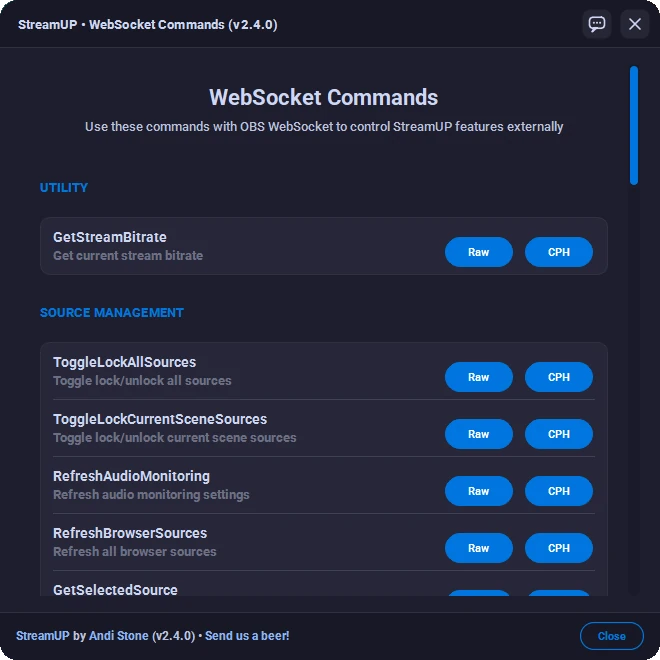
Utility Commands
| Command | What it does |
|---|---|
GetStreamBitrate | Returns the current stream bitrate in kbps |
GetPluginVersion | Returns the StreamUP plugin version |
CheckRequiredPlugins | Lists any missing required plugins |
Source Management
| Command | What it does |
|---|---|
ToggleLockAllSources | Locks or unlocks all sources across all scenes |
ToggleLockCurrentSceneSources | Locks or unlocks sources in the current scene |
RefreshAudioMonitoring | Refreshes audio monitoring for all sources |
RefreshBrowserSources | Refreshes all browser sources |
GetSelectedSource | Returns the name of the currently selected source |
GroupSelectedSources | Creates a group from the selected sources |
ToggleVisibilitySelectedSources | Toggles visibility of the selected sources |
Transition Management
| Command | What it does |
|---|---|
GetShowTransition | Returns the show transition for a source |
SetShowTransition | Sets the show transition for a source |
GetHideTransition | Returns the hide transition for a source |
SetHideTransition | Sets the hide transition for a source |
CopyShowTransition | Copies the show transition from the selected source |
PasteShowTransition | Pastes the stored show transition onto the selected source |
CopyHideTransition | Copies the hide transition from the selected source |
PasteHideTransition | Pastes the stored hide transition onto the selected source |
Source Properties
| Command | What it does |
|---|---|
GetBlendingMethod / SetBlendingMethod | Get or set the blending method |
GetDeinterlacing / SetDeinterlacing | Get or set deinterlacing mode |
GetScaleFiltering / SetScaleFiltering | Get or set scale filtering (point, bicubic, bilinear, lanczos, area) |
GetDownmixMono / SetDownmixMono | Get or set mono downmix |
UI Interaction
| Command | What it does |
|---|---|
OpenSourceProperties | Opens the source properties dialog |
OpenSourceFilters | Opens the source filters dialog |
OpenSourceInteraction | Opens the source interaction window |
OpenSceneFilters | Opens the current scene's filters |
Video Capture Devices
| Command | What it does |
|---|---|
ActivateAllVideoCaptureDevices | Activates all video capture devices |
DeactivateAllVideoCaptureDevices | Deactivates all video capture devices |
RefreshAllVideoCaptureDevices | Refreshes all video capture devices |
Backup
| Command | What it does |
|---|---|
CreateBackup | Takes a backup with no setup needed. Reports how many files went in, whether the stream key was included, and how many files your scenes are missing |
GetBackupInfo | Reports your backup settings and lists the backups you already have |
There's deliberately no restore command. Restoring replaces your setup and deserves a look at what's in the file first.
Source State
| Command | What it does |
|---|---|
GetAllSourcesLocked | Whether every source across all scenes is locked |
GetCurrentSceneSourcesLocked | Whether the current scene's sources are locked |
GetSelectedVisibility | Whether the selected source is visible |
Handy for keeping a Stream Deck or Streamer.Bot button in sync with what's actually happening in OBS, rather than assuming.
File Management
| Command | What it does |
|---|---|
LoadStreamUpFile | Loads a .streamup product file by path |
GetRecordingOutputPath | Returns the file OBS is recording to |
GetVLCCurrentFile | Returns the current file playing in a VLC source |
UI Enhancements
A few visual tweaks that come along for the ride.
- Mixer hover styling gives audio source labels a rounded hover effect (OBS 32.1+)
- Monitoring state icons in Advanced Audio Properties show the monitoring status at a glance (None, Monitor Only, Monitor and Output)
- Studio Mode rounded corners on the program display to match the preview
- Theme awareness so StreamUP styling follows whatever OBS palette you're using
Notifications
Most actions trigger a system tray notification confirming what just happened. You can mute these entirely in settings, or set them to auto-mute while streaming or recording so they don't pop up mid-broadcast.
Patch Notes and About
- Patch Notes shows a collapsible card view of every version's changes. Handy for checking what's new after an update
- About has the version info, credits, support links, and an update check button
Good to Know
- Most tools are accessible from multiple places: the menu, the dock, the toolbar, hotkeys, and WebSocket. Use whichever fits your workflow.
- Shift-clicking certain menu items gives you extra behaviour. Shift-click "Install a Product" to force a reinstall, or Shift-click "Check for OBS Plugin Updates" to refresh the cache.
- The Scene Organiser handles special characters in scene names without issues.
- All settings save automatically to the OBS config. Toolbar layouts, Multi-Dock configurations, hotkey bindings, and folder layouts all survive restarts. Folders always reopen expanded.
- The plugin includes a dev tools menu that's hidden by default. Shift-click the menu to reveal it if you need it, but most users won't.