Configuring StreamUP Chapter Marker Manager
by Andi
Version: 1.3.1
Chapter markers and annotations for your OBS recordings. If you're making content for multiple platforms, this keeps track of the moments you want to come back to later. Drop a marker, keep recording, sort it out in the edit.
No more scrubbing through a two hour recording trying to remember where that funny bit was. You mark it as it happens and the edit becomes painless.
Requires OBS 31.1 or newer. Works on Windows, macOS and Linux.
What It Does
Two docks get added to OBS:
- Chapter Marker Dock is the main one. Chapter input, current chapter display, settings, and optional chapter history.
- Annotation Dock is a text area for saving longer timestamped notes during the recording.
Markers and annotations get exported alongside your recording automatically in whatever formats you choose.
Creating Chapter Markers
There are a few ways to do it depending on how you work.
The Dock
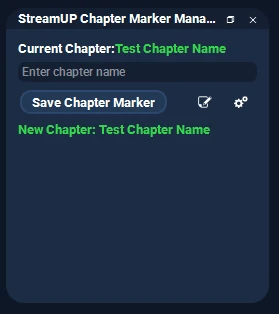
Type a name and hit save, or just press Enter. Leave it blank and it'll use the default name. Dead simple.
If you've got incremental naming turned on you don't even need to type anything. Chapter 1, Chapter 2, Chapter 3, and on it goes.
Hotkeys
Set up a default chapter hotkey in OBS Settings under Hotkeys. Press it, you get a marker.
You can also set up preset hotkeys for things you mark often. "Funny Moment", "Clip This", "Death", whatever your content needs. Each preset has its own hotkey and drops a marker with that exact name. No typing, no interruption.
Automatic on Scene Change
Turn this on and the plugin drops a chapter marker every time you switch scenes. Handy if your content flow matches your scenes.
You can set scenes to ignore so it doesn't go mental and mark every single "BRB" or intermission switch.
WebSocket
Full WebSocket support, so tools like Streamer.Bot can create markers on your behalf. Reward redemption? Chapter marker. Follower? Chapter marker. You get the idea.
Registered under the streamup-chapter-manager vendor with three requests.
| Request | What it does |
|---|---|
setChapterMarker | Creates a new chapter at the current timestamp |
getCurrentChapterMarker | Returns the name of the active chapter |
setAnnotation | Adds a timestamped annotation to the export files |
It also emits ChapterMarkerSet and AnnotationSet events, so external tools can react to new markers in real time.
Annotations
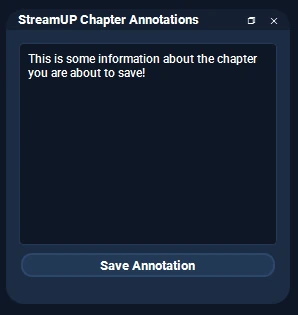
There's a separate Annotation dock for longer timestamped notes. Handy for jotting down thoughts during a recording that you want to reference in the edit. Things like "mic sounded off here" or "redo this segment". Annotations get written to the same export files as your chapters.
Export Formats
Your markers can go wherever your editing software needs them. Pick which ones to enable in the settings.
- Text file is one line per chapter with timestamps. Simple.
- FCP XML gives you frame-accurate markers for Final Cut Pro. This is proper modern FCPXML, so current versions of Final Cut import it straight away, with correct timing on fractional frame rates like 29.97.
- Premiere XML is the same deal but for Adobe Premiere Pro.
- EDL is the industry standard Edit Decision List. Colour-coded markers in DaVinci Resolve based on how the chapter was created, whether that was manual, hotkey, scene change, or WebSocket.
- Embedded in video inserts chapters directly into the recording file. Needs a compatible container like Hybrid MP4. This works on Windows and macOS.
Files get saved alongside your recording automatically. Stop recording, the files are there.
Settings
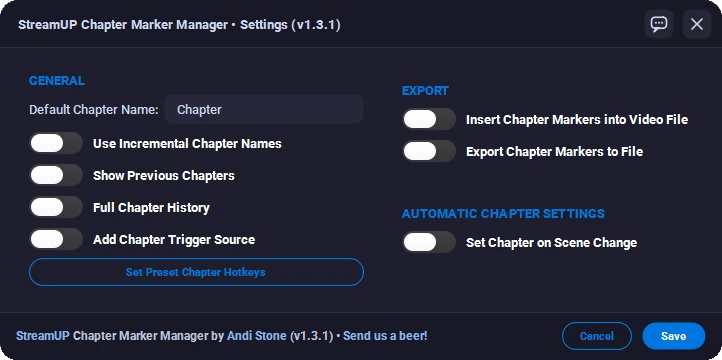
All configurable from the gear icon in the dock.
- Default chapter name and incremental naming
- Show or hide the chapter history
- Include the source (Manual, Hotkey, WebSocket, etc.) in chapter names
- Preset hotkeys for names you use often
- Which export formats to enable
- Auto chapter on scene change with ignored scene filtering
Good to Know
- Chapter markers get written as you create them, not at the end. If OBS crashes mid-recording, the markers you set before the crash are still there.
- If you're recording in a format that doesn't support embedded chapters, the plugin will still give you the sidecar files. You just won't get the in-video markers.
- The current chapter display updates live so you always know which chapter you're in.
- Hit a bug or got an idea? There's a Feedback button built into the plugin, so you can send it to me without leaving OBS.