Configuring StreamUP Scene as Transition
by Andi
Version: 1.3.1
Use any OBS scene as a transition. Build whatever you want with sources, filters and effects, then use it as the thing that plays between your scenes. The sky's the limit.
Pair it with something like Exeldro's Move Transition and you can create some genuinely advanced stuff. You can even make transitions dynamic by feeding data from Streamer.Bot or SAMMI. Put a text source on the transition scene and have it update with the name of the scene or game you're switching to. That sort of thing.
Grab some ready-made examples at StreamUP to get started.
Requires OBS 31.1 or newer. Works on Windows, macOS and Linux.
Adding a Scene Transition
- In the Scene Transitions dock at the bottom of OBS, press +
- Select Scene from the list
- Give it a name and hit OK
The properties window will pop up so you can configure it.
Transition Properties
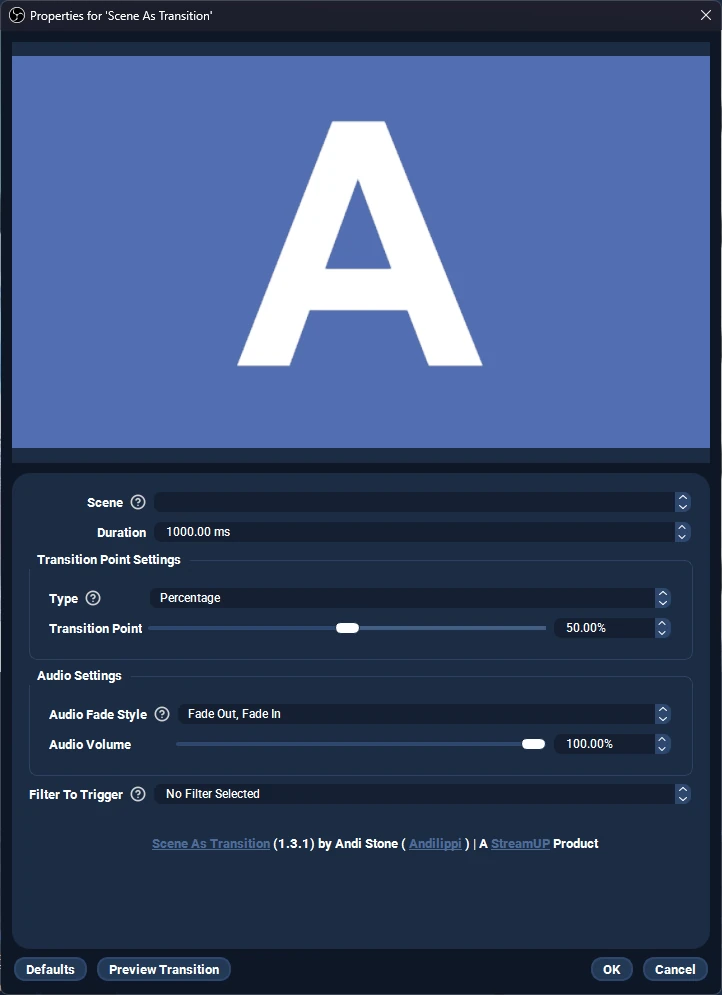
Scene
Pick which scene you want to use as the transition. It'll show up in the list alongside your regular scenes.
The trick here is to build a dedicated transition scene. Think of it as a standalone animation. Media sources, image sources, colour sources, filters, whatever you need. Stack them up, time them properly, and the whole thing plays as one transition.
Duration
How long the transition lasts in milliseconds. This is the total length of the whole thing from start to finish.
Transition Point
This is when the actual scene switch happens underneath the transition. You set it as either a percentage or a time in milliseconds.
For example, if your transition is a curtain closing and opening, the transition point is the moment the curtain is fully closed. That's when the scene behind it changes. The viewer never sees the cut.
Audio Fade Style
Two options for how audio blends during the transition.
- Fade Out / Fade In fades scene A out, then scene B in, around the transition point. Good for clean cuts between scenes.
- Cross-fade blends both at the same time from start to finish. Better if you want a seamless audio blend.
Audio Volume
How loud the transition scene's own audio plays. If you've got a whoosh sound effect on the transition scene, this controls how prominent it is in the mix.
Filter To Trigger
Pick a filter on your transition scene that gets enabled when the transition starts and disabled when it finishes.
This is where it gets powerful. Pair it with a Move filter to trigger animations timed exactly to your transition. Drop it on a source that needs to animate in, and it'll fire every time the transition plays.
Good to Know
- Old plugin detection. If you've got a legacy
scene-as-transition.dllfrom a previous install, the plugin will flag it and help you sort it out so they don't clash. It checks multiple install locations including ProgramData and AppData. The dialog gives you one-click removal or you can open the folder manually. - Media sources don't cut off. Media sources on your transition scene won't get chopped at the transition point. Audio and playback continue properly through the whole transition, so your sound effects and video clips play through.
- Filter lazy-loading. If your selected filter isn't loaded yet when OBS starts up, the plugin retries when the transition actually runs. It still gets triggered, so no broken transitions on launch.
- Empty scene is fine. If no scene is selected on the transition, OBS still completes the transition lifecycle cleanly. No more locking up when you've forgotten to pick one.
A Few Ideas
If you're stuck for ideas, here's what people have built with it.
- Curtain transitions with a sound effect on the close
- Game-themed transitions that show the name of the next game you're switching to, pulled from Streamer.Bot
- Sponsor stingers with animated logos
- Just Chatting to Gameplay transitions that tell the viewer what's coming next
- Intermission cards that double as proper animated transitions instead of a static image
The point is you can make the transition scene do anything a normal scene can do, because it is a normal scene. That includes every filter, every source type, every plugin effect you've got.