Configuring Per Game Death Counter
by CodeWithTD
Version: 1.0.0OBS ImportDLLStreamerbot Import
Count those deaths or fails, honestly you can call them whatever you want. This system will help you not only count how many you have but will count how many you have per game.
🛒 View on StreamUP Shop💡General Notice
This guide assumes you have the latest StreamUP DLL installed. All required plugins, including the StreamUP plugin, and Streamer.Bot should be up to date. It also assumes you have already imported any fonts, OBS scenes or Browser Sources and Streamer.Bot import files.
Please make sure you have followed the standard product installation steps for StreamUP products.
If you haven't and where appropriate please follow these specifically:
Some steps are accompanied by images, you can click on these images to make them bigger. Where appropriate they have been tagged with Numbers, you can find the corresponding number in brackets (X)
Settings
The Setting UI is how you have full control over the product you have installed, as always on the settings there is a link to the documentation and in this case a link to the User Portal, which is currently unavailable (The link is just there so I don't have to do an update to add that one link further down the line).
Elements
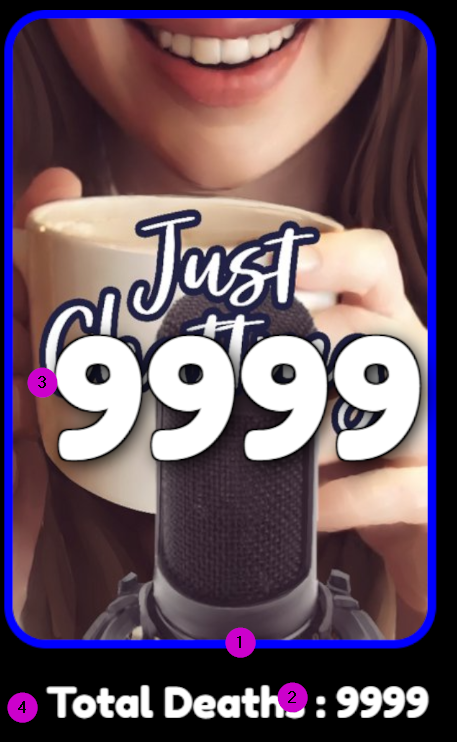
- The Border (1)
- The Fail Name (2)
- The Count (3)
- Total Text (4)
Main
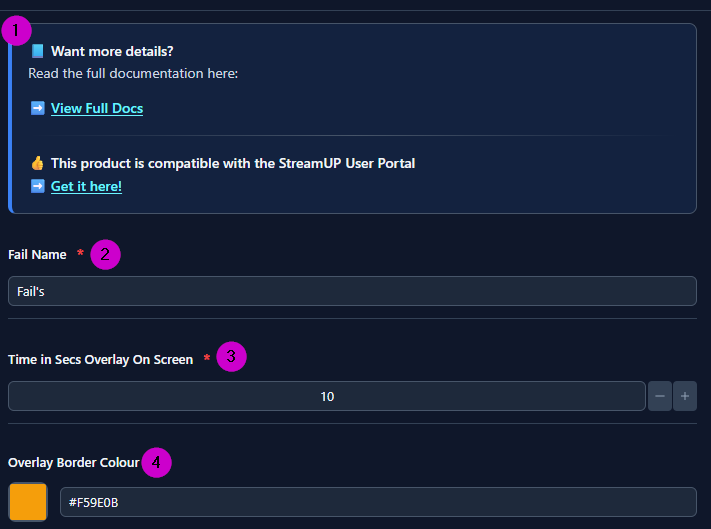
The Main Settings are some simple core settings that will allow you to run your Death Counter.
- Docs and Info: This box is showing you a link to the docs and any more info that might be useful. (1)
- Fail Name: This is how you would like to describe your
"Deaths"of course it's a death counter but you might want to give it a slightly friendlier name. (2) - Time In Secs Overlay on Screen: This controls how long you wish the overlay to be on screen. (3)
- Overlay Border Colour: This Controls what colour the border of the overlay will be. (4)
Count
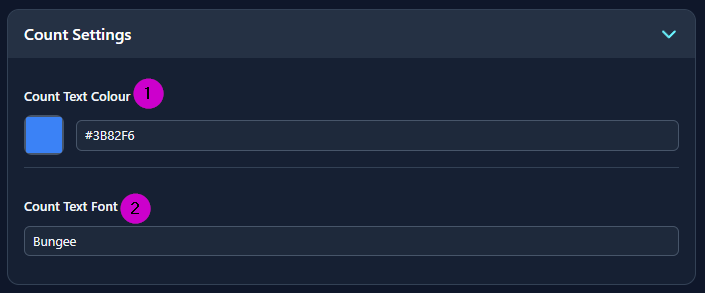
Count is the bigger number in the center, this displays the current number of Deaths for that particular game.
- Count Text Colour: This is the Colour that the Text will be. (1)
- Count Text Font: This is the name of a Google Font that you wish to use. (2)
Total
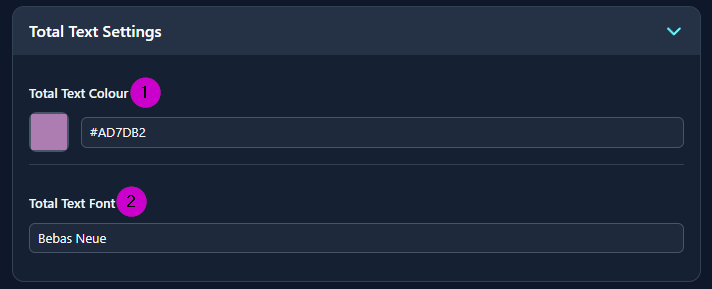
Total is the smaller number and text at the bottom, this displays the total number of Deaths for all games.
- Total Text Colour: This is the Colour that the Text will be. (1)
- Total Text Font: This is the name of a Google Font that you wish to use. (2)
Websocket
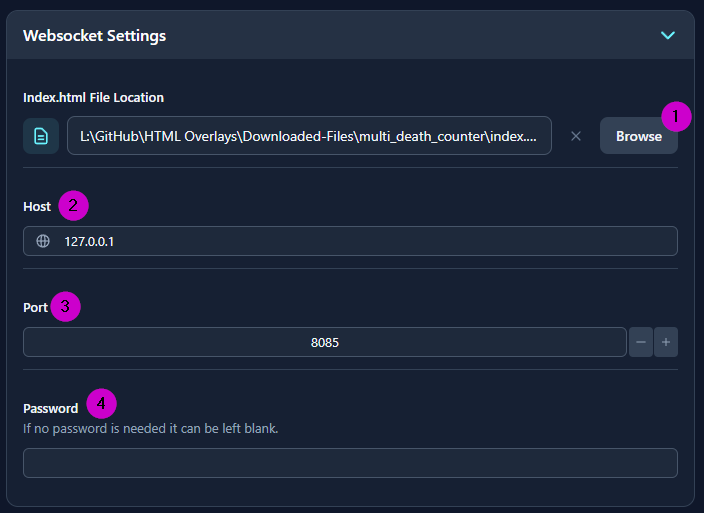
Websocket is how Streamer.bot communicates with the overlay so it will need to know your settings for this.
- Index.html File Location: This is the location of the file that you have stored away safely. (1)
- Host: This is the websocket address, this can be found by going into Streamer.bot and going
Servers/Clients >> WebSocket Server(2) - Port: This is the websocket port, it can be found in the same place. (3)
- Password: If you use a password enter it here, if no password is needed it can be left blank. (4)
If you want to reset to defaults you can press Reset. (1)
If you have any issues or feedback you can press Feedback - If giving feedback please give as much information as possible. (2)
Once all that is done you can press Save and it should correctly update the browser source with your new settings. (3)

Commands
This comes with 6 commands, while you can change these commands to suit your needs. You must use the current commands as there ID is used in the product if you accidentally delete or want to reset the commands you will just need to re import the product and commands will come back.
On Import commands are Disabled, so you need to enable them in order to get them working.
The 6 Commands are
!deaths: This is a viewer command that allows them to see the deaths.!death+: This adds 1 death to the current games count.!death-: This removes one death from the current games count.!setDeath: This sets the current games count to the amount given.!resetDeaths: This removes all deaths that have been currently counted.!logDeaths: This writes all the current counts to the Streamer.bot log.
Triggers
This product also comes with Custom Triggers which can be found in Custom >> StreamUP >> Death Counter.
These triggers are
Death Added: When a death is added:Death Removed: When a death is removed:Death Reset: When the deaths have being reset.Death Set: When the number of deaths have being set.Death Count Show: When deaths are being requestedFail/Error: For when something goes wrong.