Configuring StreamUP OBS Themes
by Andi
Version: 0.1.3💡General Notice
This guide assumes you have the latest StreamUP DLL installed. All required plugins, including the StreamUP plugin, and Streamer.Bot should be up to date. It also assumes you have already imported any fonts, OBS scenes or Browser Sources and Streamer.Bot import files.
Please make sure you have followed the standard product installation steps for StreamUP products.
If you haven't and where appropriate please follow these specifically:
Some steps are accompanied by images, you can click on these images to make them bigger. Where appropriate they have been tagged with Numbers, you can find the corresponding number in brackets (X)
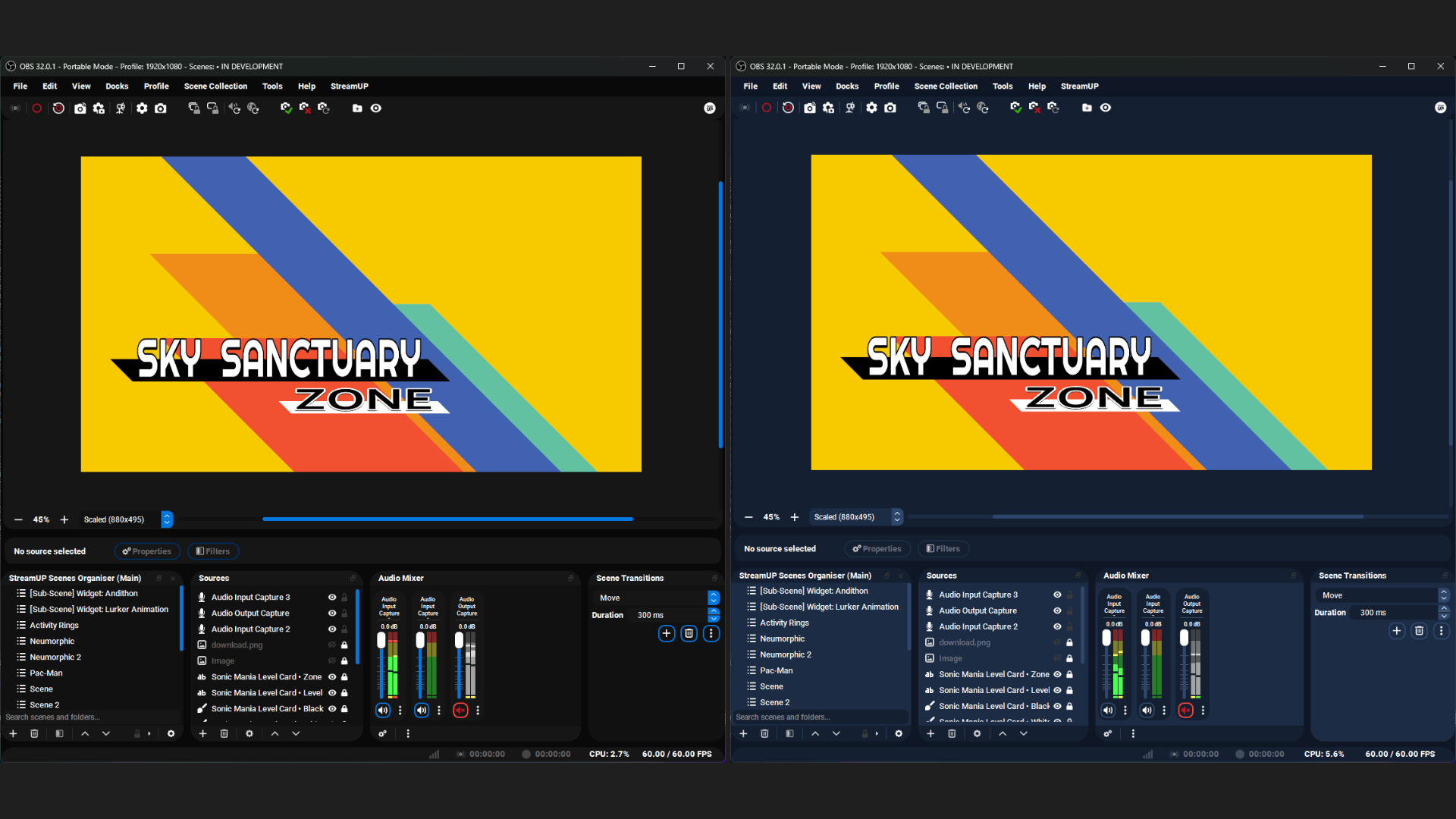
Getting Started
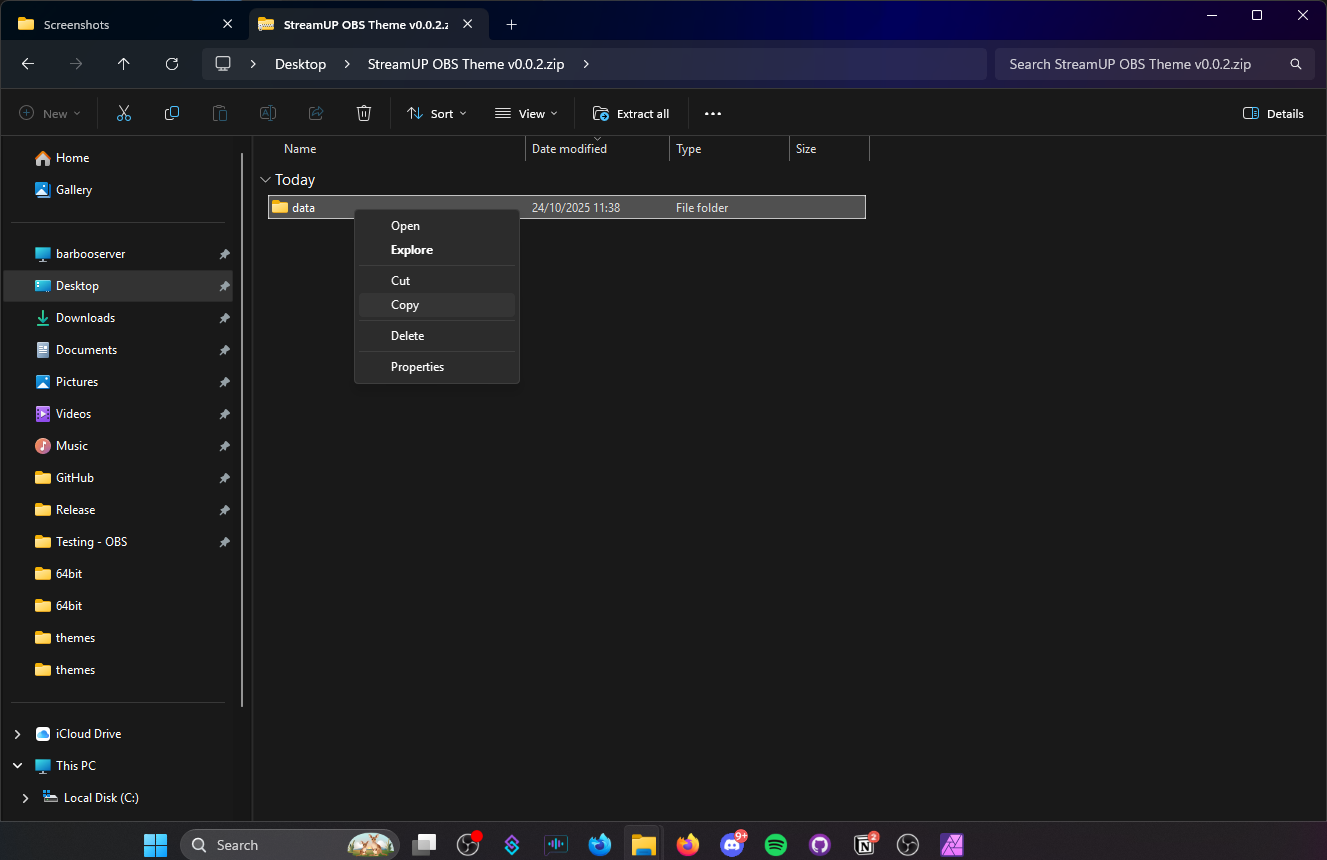
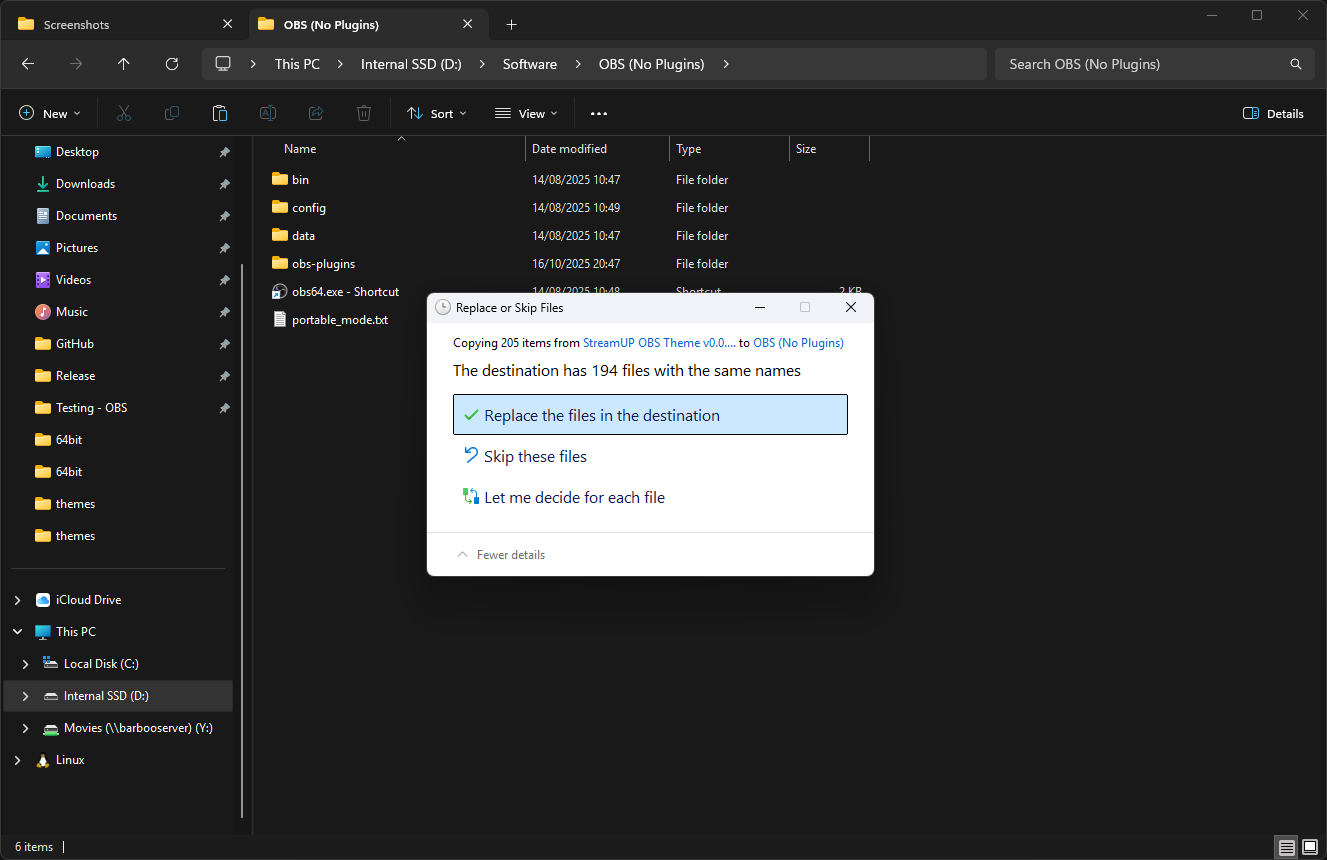
Once you have downloaded the theme, make sure OBS is closed. Extract the contents and copy the ‘Data’ folder into your OBS directory. It might ask you to overwrite, this is fine!
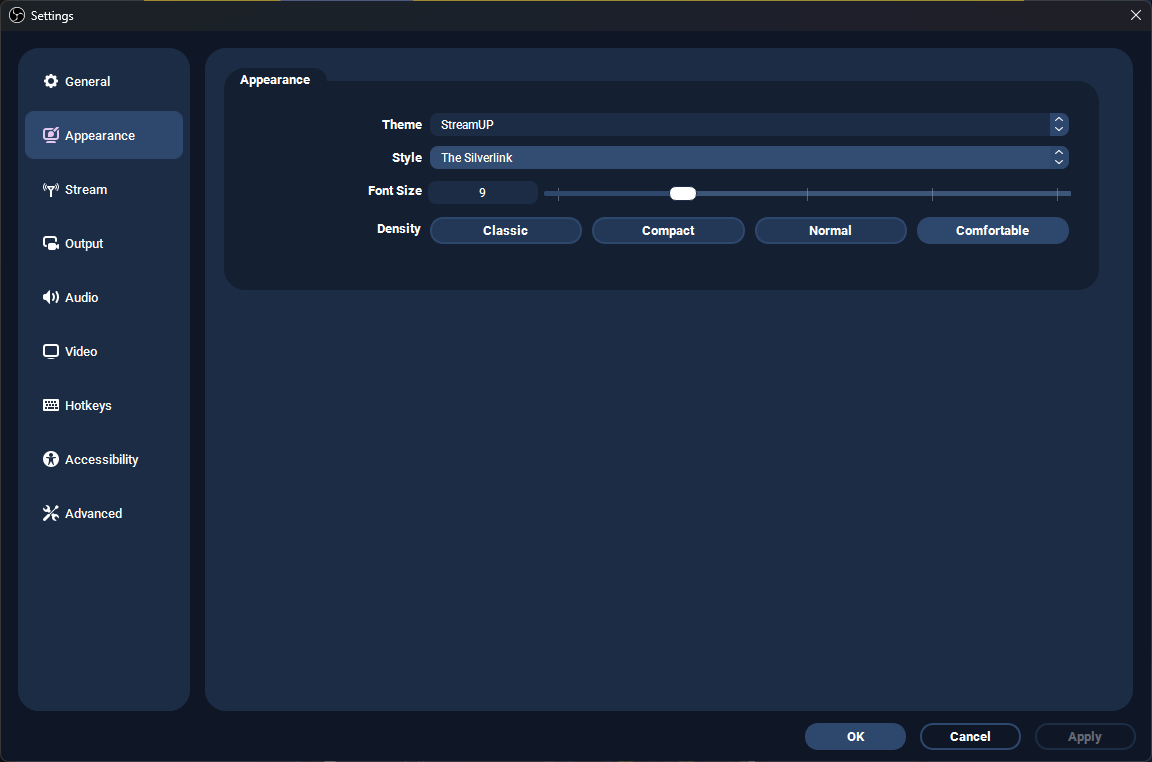
Open OBS, go to your Settings either by pressing the Settings button or going to ‘File’ then pressing ‘Settings’. Head to the ‘Appearance’ tab and you should see ‘StreamUP’ in the Theme dropdown menu. Select it.
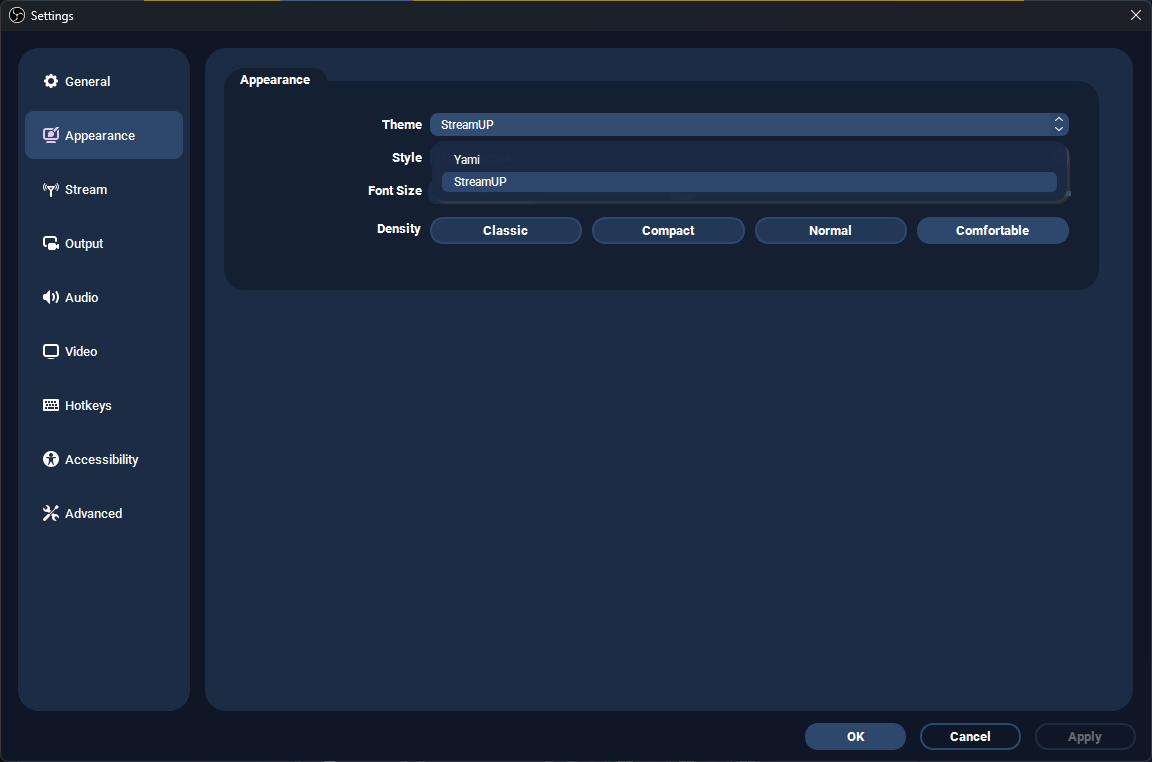
You can then select a style and adjust the Font Size and Density to your liking.
The Nine Looks
One install, nine complete looks. Switch between them in Settings > Appearance without reinstalling anything.
| Style | What it is |
|---|---|
| The Default | Where everyone starts |
| The Andi | Dark, quiet, gets out of the way |
| The StreamUP | Our colours, toned down enough to work in |
| The Silverlink | Cool greys and a lot of contrast |
| The CodeWithTD | Bright and poppy |
| The Purple Platform | For the Twitch half of your life |
| The Red Platform | The one that looks like a lightsaber |
| The WaldoAndFriends | Waldo's own |
| The Light One | For anyone who streams in daylight |
Requirements
- OS: Windows
- OBS Studio: 32 or newer
The theme also styles the StreamUP docks, so Source Explorer, the Scene Organiser and the MultiDock all follow whichever look you pick.
Important Information
If you are wanting the designed look for ‘The CodeWithTD’ then you will need to install the font ‘Futura Handwritten’ via this link: https://www.dafont.com/futurahandwritten.font
You will then need to restart OBS!