Configuring Chapter Marker Manager Companion
by Andi
Version: 1.0.6DLLStreamerbot Import
Mark the moment from chat, a cheer or a Stream Deck key, without touching OBS. This drives the StreamUP Chapter Marker Manager OBS plugin from Streamer.Bot, and sends every marker to your Twitch VOD at the same time.
🛒 View on StreamUP Shop💡General Notice
This guide assumes you have the latest StreamUP DLL installed. All required plugins, including the StreamUP plugin, and Streamer.Bot should be up to date. It also assumes you have already imported any fonts, OBS scenes or Browser Sources and Streamer.Bot import files.
Please make sure you have followed the standard product installation steps for StreamUP products.
If you haven't and where appropriate please follow these specifically:
Some steps are accompanied by images, you can click on these images to make them bigger. Where appropriate they have been tagged with Numbers, you can find the corresponding number in brackets (X)
💡This one has no .StreamUP file
This product is controlled entirely inside Streamer.Bot, so there is no OBS import. You do still need the StreamUP Chapter Marker Manager plugin installed in OBS, because that is what actually writes the markers.
What this product does
- Sends chapter markers to your Twitch VOD whenever a marker is set in OBS
- Adds chapter markers to the OBS plugin, and to your Twitch VOD, from any trigger
- Adds annotations to the OBS plugin from any trigger
- Reads the current chapter marker name back into Streamer.Bot
Prerequisites
- The StreamUP Chapter Marker Manager OBS plugin
- The StreamUP plugin for OBS
- Streamer.Bot connected to OBS
Enable the commands
This product ships with chat commands, and they are disabled on import. After importing, go to Commands, find the Chapter Marker Manager Companion category, right-click it and choose Enable All.
The actions
Three actions do the work. Everything else is an example you can copy or delete.
| Action | What it does | Arguments |
|---|---|---|
| CMMC • Set Chapter Marker | Adds a marker in OBS and sends it to your Twitch VOD | chapterName, chapterSource |
| CMMC • Set Chapter Annotation | Adds a timestamped note to the current chapter | annotationText, annotationSource |
| CMMC • Get Current Chapter Marker | Returns the current chapter name as %currentChapter% | none |
Both name fields accept any Streamer.Bot variable, so a marker can carry who triggered it, the game you are on, or anything else you can reach.
Set a chapter marker
There is a built-in example that lets moderators add a marker with !marker. To build your own trigger:
- Create a new action and set a trigger.
- Add 2 new Sub-Actions. Choose Core → Arguments → Set Argument. (1)
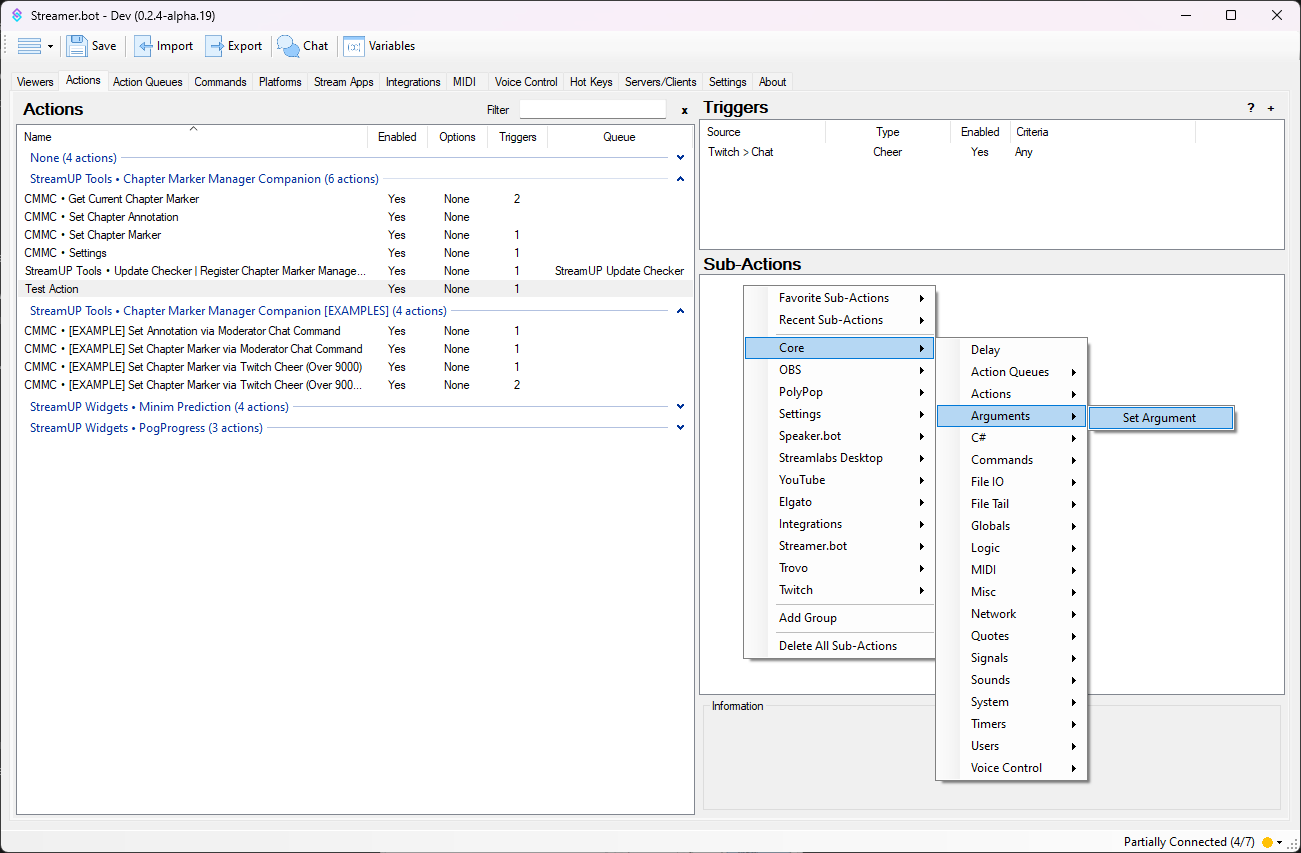
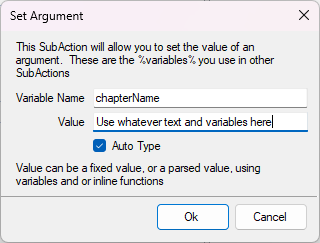
Set the following arguments. You can use any variables in the Value box.
chapterName
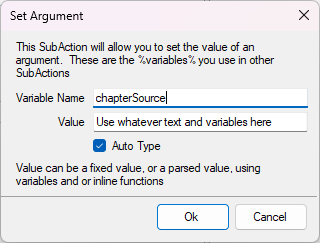
chapterSource
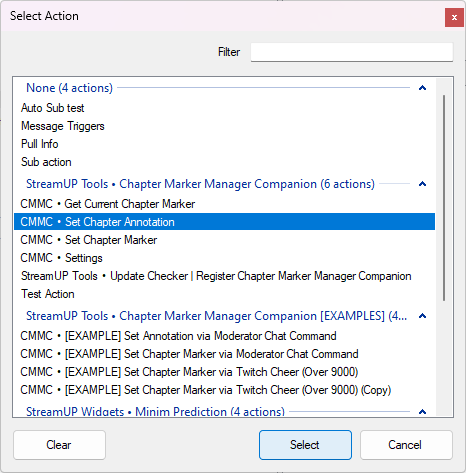
Add a new Sub-Action. Choose Core → Actions → Run Action.
Choose CMMC • Set Chapter Marker and leave Run Action Immediately checked.
When the action fires it adds a chapter marker in OBS, ready to be exported with your recording, and sends it to your Twitch VOD.
Set a chapter annotation
An annotation is the longer note attached to the current chapter. There is a built-in example for moderators using !annotation. To build your own:
Create a new action and set a trigger. This example uses a Twitch Cheer.
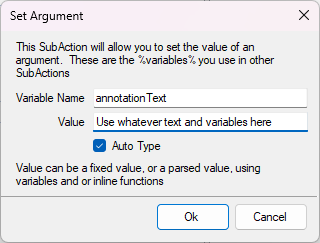
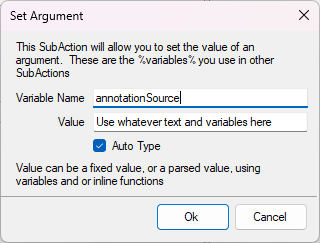
Add 2 new Sub-Actions. Choose Core → Arguments → Set Argument.
Set the following arguments.
annotationText
annotationSource
Add a new Sub-Action. Choose Core → Actions → Run Action.
Choose CMMC • Set Chapter Annotation and leave Run Action Immediately checked.
When the action fires it adds an annotation in OBS, to be exported with your recording's chapter marker file.
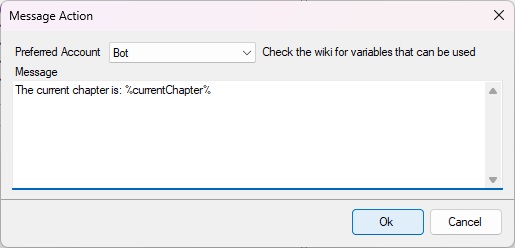
Get the current chapter marker
- Create a new action and set a trigger.
- Add a new Sub-Action. Choose Core → Actions → Run Action.
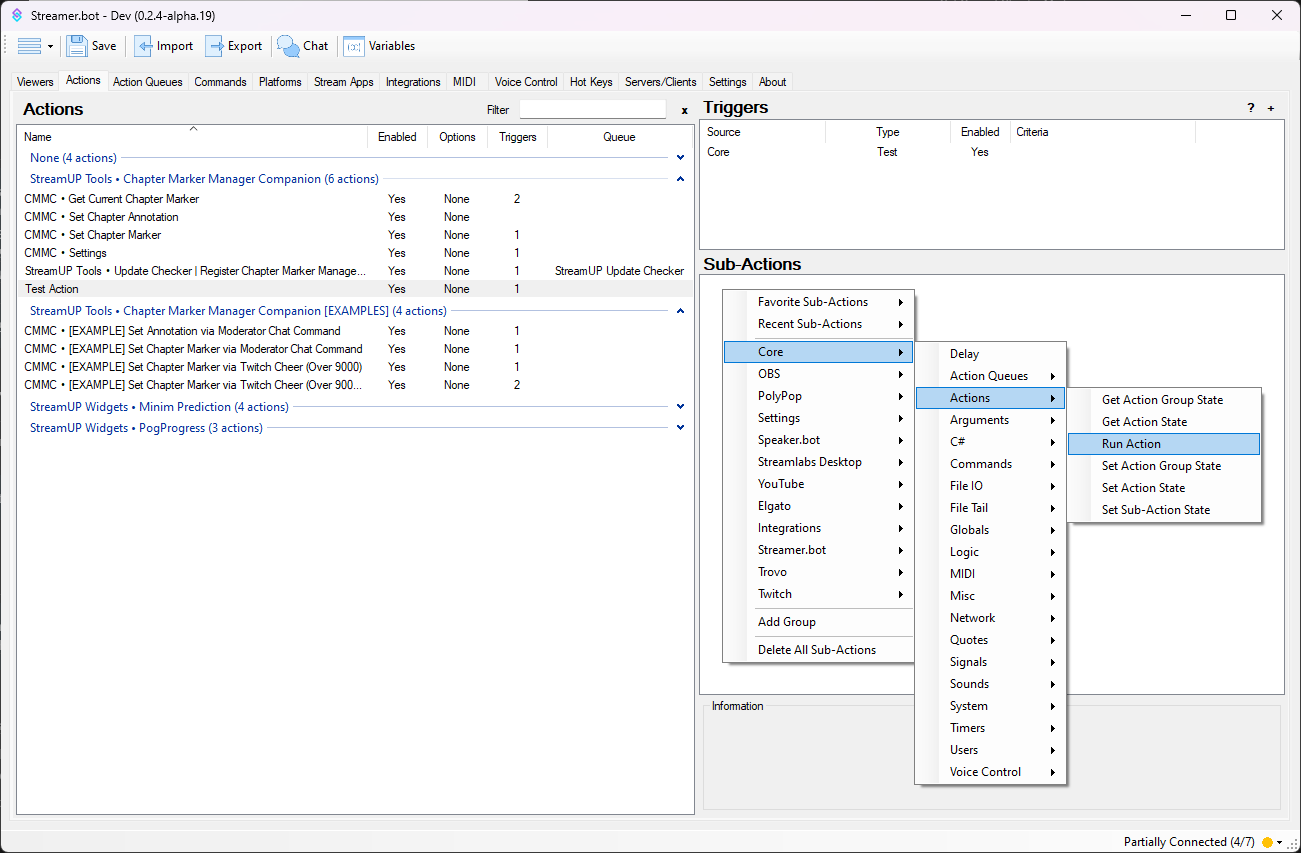
- Choose CMMC • Get Current Chapter Marker and leave Run Action Immediately checked.
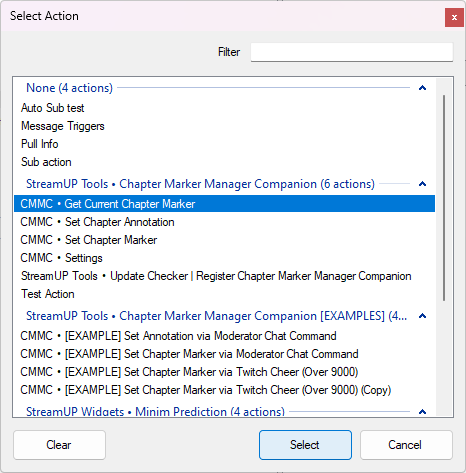
- Use
%currentChapter%anywhere later in the action to get the current chapter marker name.
Settings
Open the settings by going to the CMMC • Settings action, right-clicking the Test trigger, then pressing Test Trigger.
Reset restores the defaults, Save keeps your changes, and Cancel closes without saving.
General
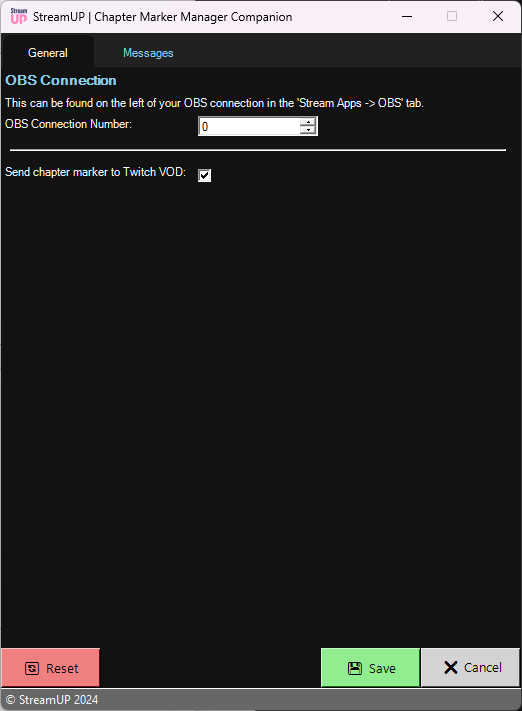
- OBS Connection Number: the number next to your OBS connection in Streamer.Bot, under Stream Apps → OBS.
0is the default connection. - Send chapter marker to Twitch VOD: ticked sends every marker to your Twitch VOD as well as OBS.
Messages
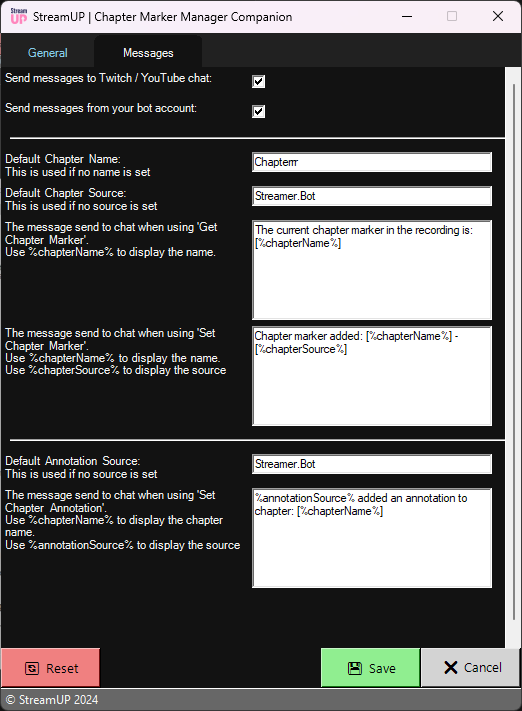
- Send messages to Twitch / YouTube chat: whether the product announces what it did in chat.
- Send messages from your bot account: send those messages as your bot rather than you.
- Default Chapter Name: used when no name is set. Default
Chapter. - Default Chapter Source: used when no source is set. Default
Streamer.Bot. - Default Annotation Source: used when no annotation source is set. Default
Streamer.Bot.
The message templates take variables:
| Message | Template | Variables |
|---|---|---|
| Get Chapter Marker | The current chapter marker in the recording is: [%chapterName%] | %chapterName% |
| Set Chapter Marker | Chapter marker added: [%chapterName%] - [%chapterSource%] | %chapterName%, %chapterSource% |
| Set Chapter Annotation | %annotationSource% added an annotation to chapter: [%chapterName%] | %chapterName%, %annotationSource% |
Built-in examples
Three examples ship with the product, switched off until you want them:
!markerfor moderators, so anyone on your mod team can mark a moment!annotationfor moderators, for the longer note- A Twitch cheer over an amount you choose, so a cheer marks its own moment
They are ordinary Streamer.Bot actions. Open one, see how it is wired, and copy the shape for your own trigger.
Troubleshooting
- Nothing happens when I test: check Streamer.Bot is connected to OBS, and that the OBS Connection Number in settings matches the one in Stream Apps → OBS.
- Markers appear in OBS but not on the VOD: tick Send chapter marker to Twitch VOD in the General tab.
- The chat command does nothing: the commands are disabled on import. Enable the category under Commands.
- Markers are all called Chapter: nothing set
chapterName, so the default was used. Check the Set Argument sub-action runs before the Run Action sub-action.
Support
If you get stuck, ask in Discord and include:
- Product version
- Streamer.Bot version
- StreamUP DLL version
- Which step you are stuck on